What Alexa Cast Can Do
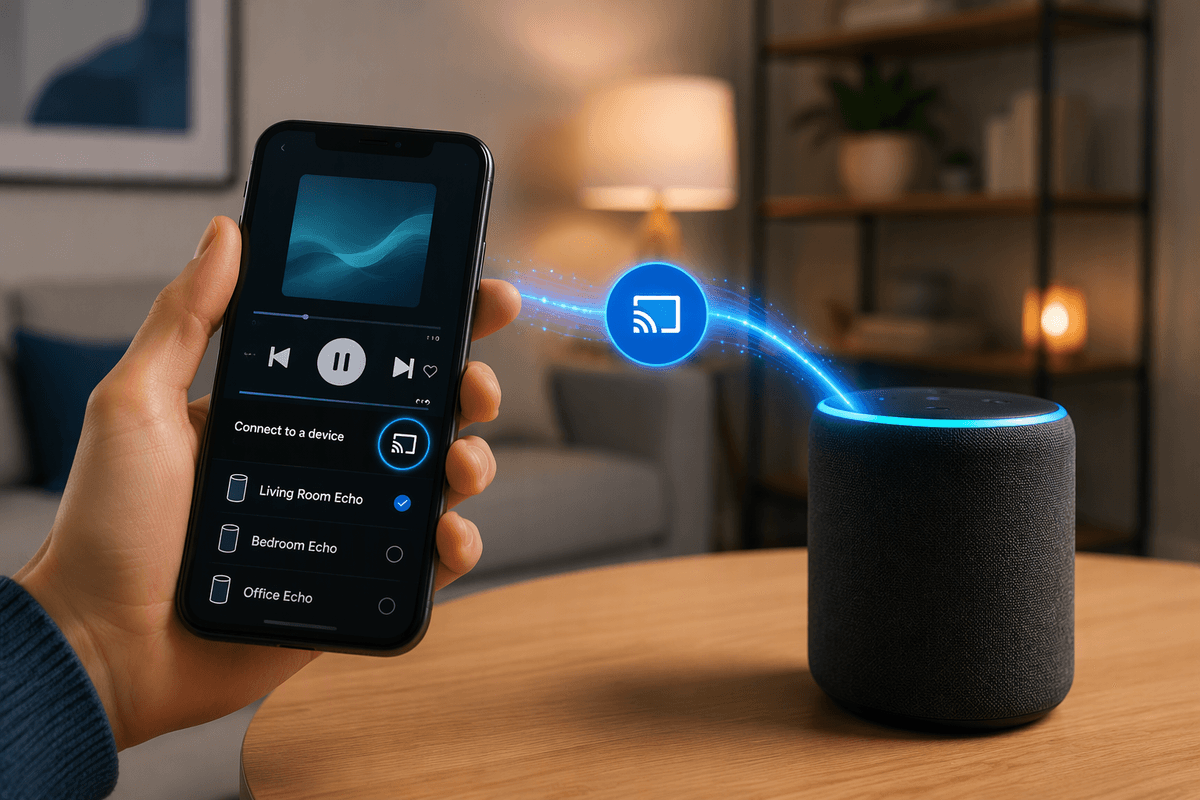
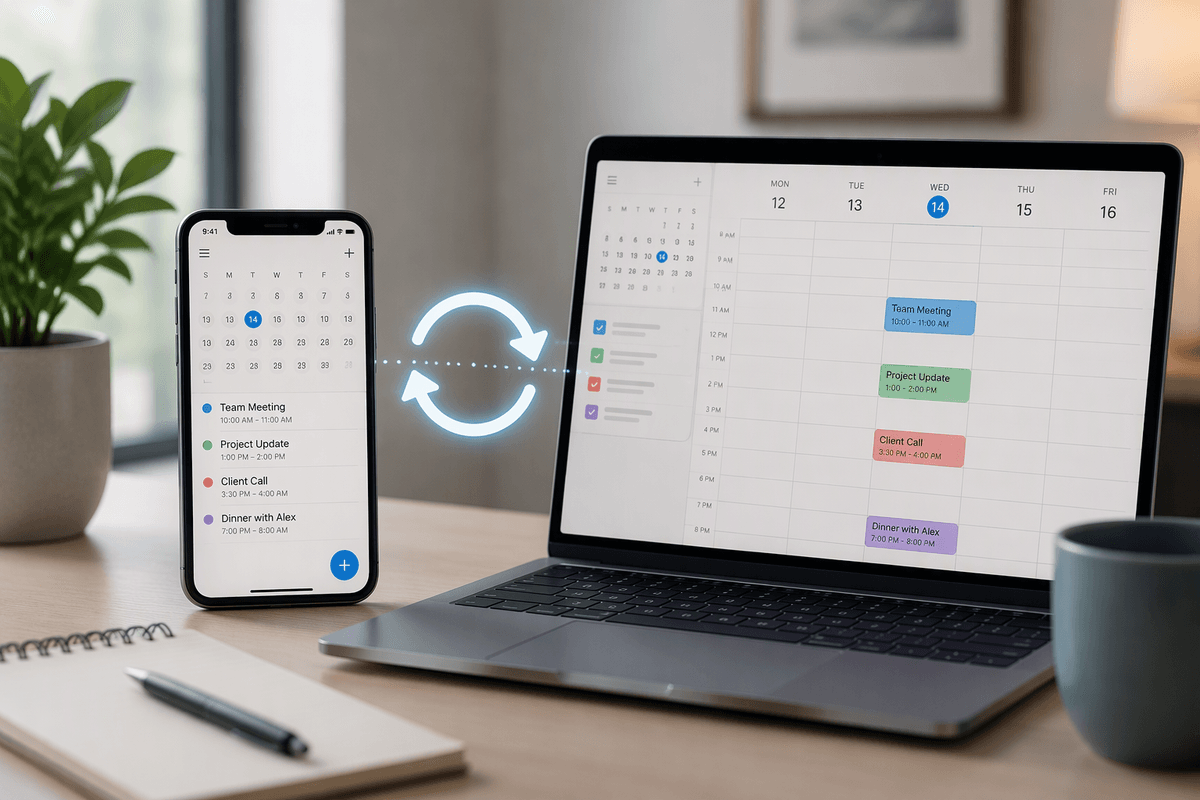
Alexa Cast lets you choose where audio plays from the Alexa app on your phone or tablet. Instead of asking Alexa to find a song, you can browse supported music or podcast services, tap the Cast icon, and select an Echo speaker or another compatible device. Playback then moves to that device while your phone acts as the control panel.
You can usually pause, resume, skip, adjust volume, and switch playback to another available Alexa device without starting over. This is useful when voice commands are inconvenient, when the room is noisy, or when you want to browse privately. Support depends on the service, app version, account, and device connection, so a Cast option may not appear for every type of audio or every speaker.
Check Devices, Apps, and Connections
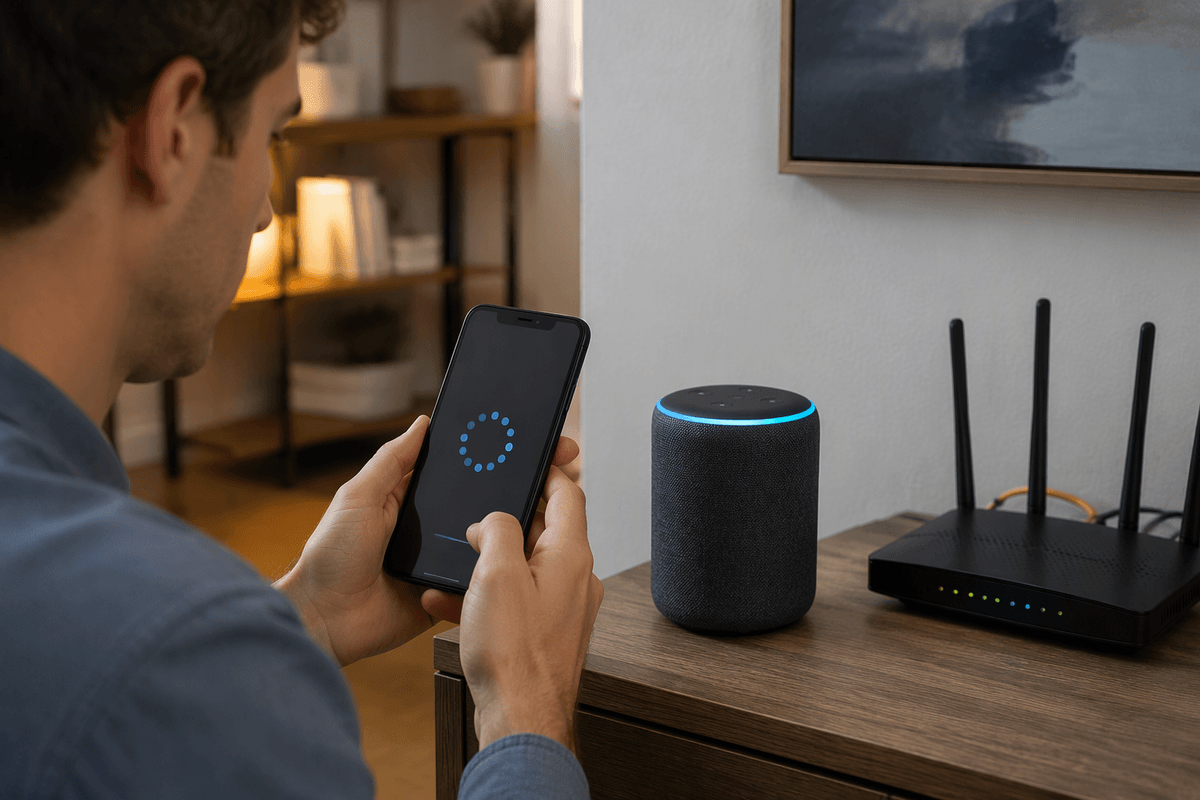
Before looking for the Cast icon, make sure your phone or tablet and the Echo device are connected to the same Wi-Fi network. The Alexa app should be signed in to the Amazon account that manages the speaker, and the speaker needs to be online and registered in that account. If you have separate 2.4 GHz and 5 GHz networks, connect both devices to the same one. A guest network can prevent them from seeing each other.
Alexa Cast also depends on the app you are using. Open the Alexa app or a supported music or podcast service, then check that it is updated and signed in correctly. Not every audio app, subscription, song, or device supports casting. Older Echo models, third-party speakers, and devices controlled through a different account may not appear. If a speaker is missing, restart the app, confirm the device responds in the Alexa app, and check the network before changing settings or reinstalling anything.
Connect Alexa Cast to Your Speaker
Open the Alexa app or the supported music service on your phone or tablet and start the audio you want to hear. Look for the Cast icon, usually near the playback controls or device options. Tap it, wait for the available devices to load, and choose the Echo speaker by its assigned room name. The speaker may take a few seconds to respond; avoid tapping the device repeatedly while the connection is being established.
Once connected, the selected speaker should show as the playback destination, and the audio should move from your phone to the Echo. You can keep using the phone to pause, skip, change volume, or browse for another track. To move playback, open the Cast menu again and select a different compatible device. If the speaker appears but will not connect, stop playback, close and reopen the app, and try again. Switching between Wi-Fi networks while casting can also interrupt the session, especially if the phone changes to cellular data.
Start, Control, and Stop Playback
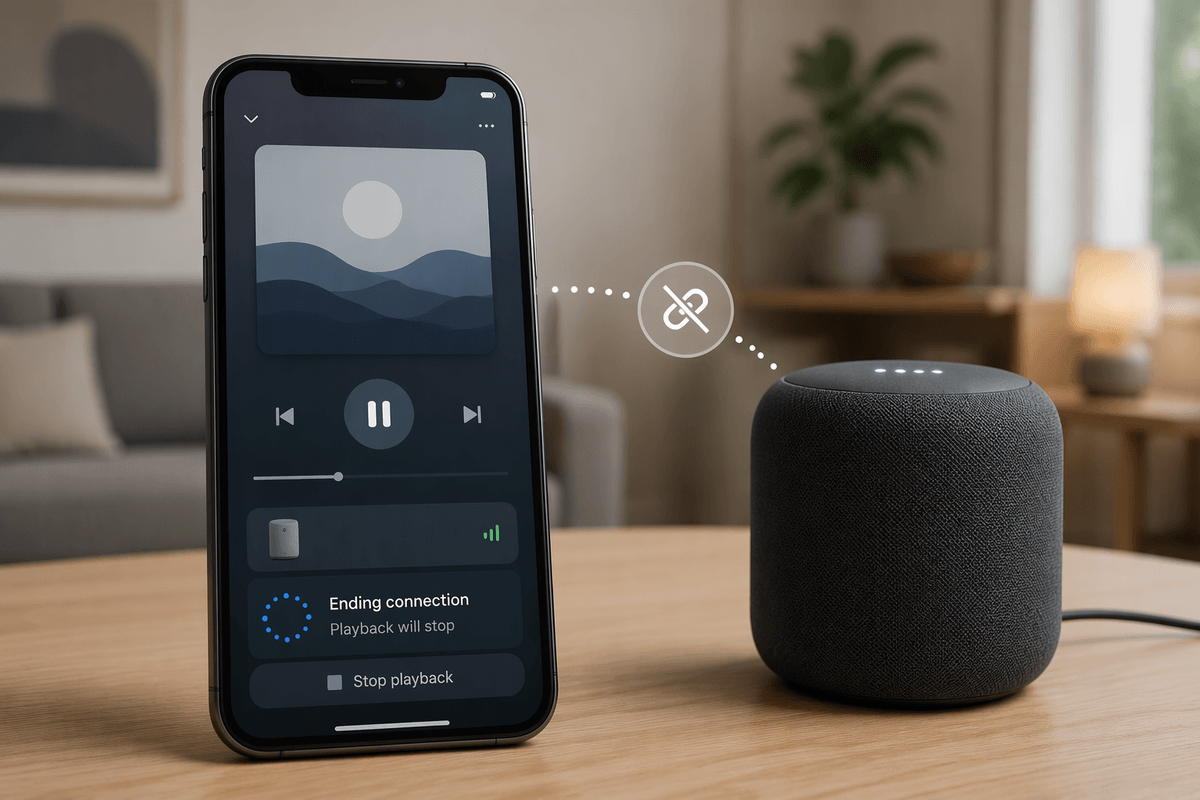
After the speaker connects, use the playback screen on your phone or tablet as the main control surface. Play or pause the current item, skip forward or back, adjust the volume, and browse for another song or episode without disconnecting the Echo. Some services also let you add items to a queue or change playback speed, but those controls depend on the app rather than Alexa Cast itself. Keep the app open if controls stop responding, since force-closing it can end or weaken the casting session.
To send playback somewhere else, tap the Cast or device button again and choose another compatible Echo. The first speaker may stop immediately, or the service may take a moment to transfer playback. For a clean handoff, wait until the new device is shown as selected before pressing play. When you are finished, tap pause or stop in the app. You can also choose the phone, disconnect from the Cast menu, or ask Alexa to stop, although voice commands may affect other audio playing on that device. If playback continues unexpectedly, check the active device and queue before closing the app.
When Casting Does Not Appear
When the Cast icon is missing, first check whether the audio is playing inside a supported app rather than a general browser or local file player. Some services show casting only after playback begins, while others place it under a device, speaker, or “available devices” button. Confirm that the app is signed in to the same account connected to Alexa, then close and reopen it. An outdated app, restricted subscription, or unsupported track can hide the option even when the Echo is working normally.
If the icon still does not appear, verify that the phone and Echo are on the same Wi-Fi network and that the Echo responds in the Alexa app. Temporarily disable a cellular-data handoff, or privacy setting that blocks local-device discovery. Restart the Echo by unplugging it briefly, then restart the phone if necessary. Avoid repeatedly reinstalling apps or resetting the speaker; those steps can remove saved settings without fixing the underlying network problem. If other Echo devices appear but one does not, check that device’s registration, room name, software status, and compatibility with the service.
Use Groups, Privacy, and Voice Controls
If you regularly cast in more than one room, create an Alexa speaker group for the devices you use together. A group can make it easier to choose a shared destination, but group playback depends on compatible Echo models, network stability, and the music service. Individual speaker names are often more reliable when you need sound in only one room. If playback seems delayed or out of sync, stop the session and reconnect to the group rather than adjusting each speaker separately.
Privacy is another reason to use app controls instead of voice commands. Browsing music on your phone avoids announcing searches or account details aloud, while voice controls remain useful for quick actions such as pausing, resuming, changing volume, or stopping playback. Remember that “stop” affects audio on the selected Echo and may interrupt another person’s session. Before using a voice command, check which device is active in the app. For shared spaces, review household profiles, linked services, and voice-purchasing settings so another user cannot accidentally control the wrong account or speaker.
A Simple Routine for Reliable Casting
Make casting routine by checking the same few points each time: connect the phone and Echo to the same Wi-Fi, open a supported app, start playback, and select the intended device before changing the volume or queue. If the speaker is missing, wait briefly, refresh the device list, and confirm the Echo is online in the Alexa app. This avoids unnecessary resets and makes it easier to identify whether the problem is the app, account, network, or speaker.
For dependable use, keep the Alexa and audio apps updated, avoid switching networks during playback, and use individual speakers when group casting becomes unreliable. Remember that casting depends on compatible services and devices, so a missing option may be a limitation rather than a fault. Once these checks become familiar, Alexa Cast offers a practical way to browse privately while keeping playback control in your hand.