Why Airtable records drift out of sync
Airtable records usually drift out of sync for ordinary reasons: different people fill the same fields in different ways, and the base quietly accepts almost all of it. One person types “NY,” another types “New York,” a third pastes “New York, NY,” and a fourth leaves it blank because the field isn’t required. Nothing looks “wrong” in the moment, but grouped views split into multiple buckets, rollups miss matches, and automations that expect one clean value start skipping records.
The drift accelerates when data enters from multiple paths: manual entry, form submissions, CSV imports, synced tables, and automations that write back partial updates. Even careful teams create mismatches because they’re optimizing for speed, not consistency, and Airtable won’t stop them. The practical constraint is that you can’t rely on training alone—people change, processes evolve, and old records don’t automatically update—so you need fields that actively normalize and flag issues as the base grows.
Spot the fields where formulas save you
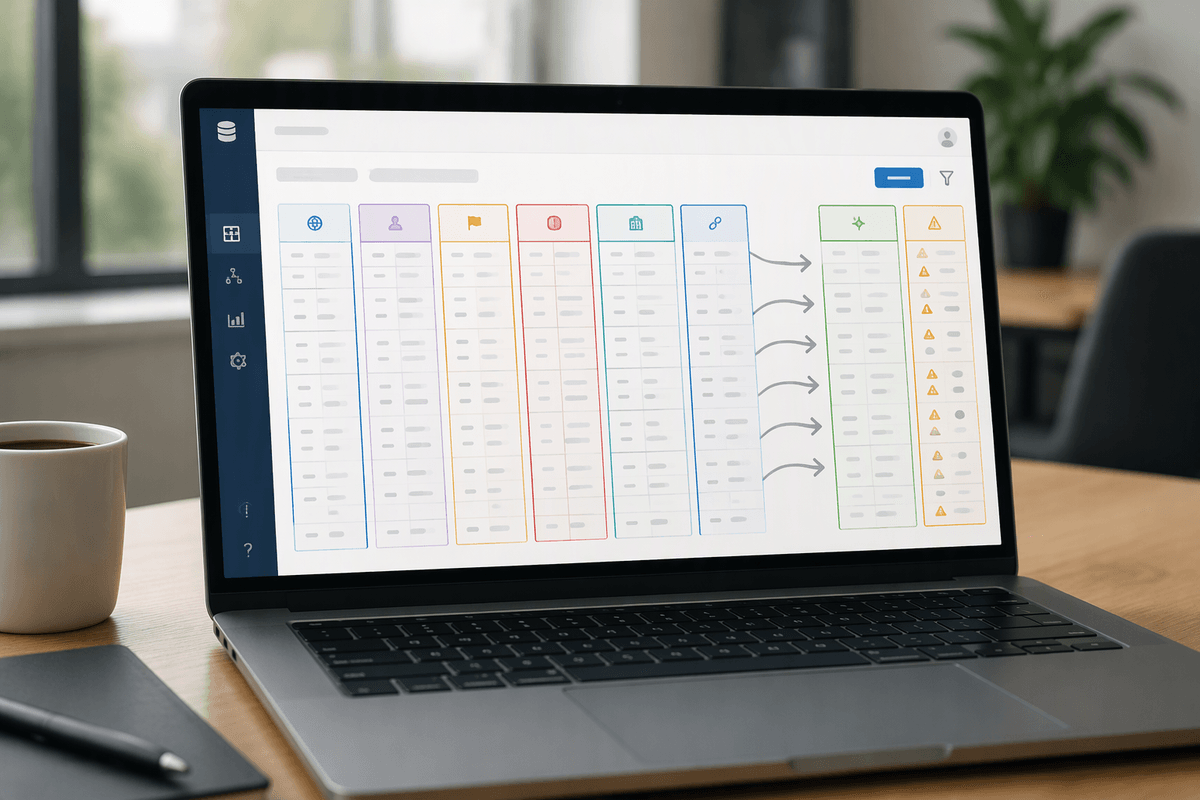
You can’t (and shouldn’t) solve every inconsistency with formulas, but a few field types are high-leverage because they’re the ones other parts of the base depend on. Anything used for grouping, matching, or routing is a good candidate: “State/Region,” “Owner,” “Stage,” “Priority,” “Customer Name,” and any “External ID” coming from imports or forms. If a value drives an automation branch, a conditional view filter, or a dedupe check, it deserves a computed “clean” version that downstream logic uses instead of the raw input.
A simple pattern is to keep the human-entered field for speed, then add one formula field for normalization and one for a flag. Normalize with trimming, casing, and controlled fallbacks; flag when the value is blank, unexpected, or suspiciously formatted. The trade-off is you’re adding fields and maintenance overhead, so focus on the 10% of inputs that cause 90% of breakage.
Normalize text so one value stays one value
You’ve seen the pattern: a stakeholder asks for a list of “Acme,” but half your records say “ACME Inc.” and the other half say “Acme (new).” The fix isn’t to argue about the “right” label—it’s to make one consistent output that everything else depends on. Start with boring cleanup: TRIM() to remove leading/trailing spaces, SUBSTITUTE() to collapse double spaces, and LOWER() or UPPER() to make casing predictable. If punctuation causes splits, strip it (for example, remove periods and commas) before you compare or group.
Then separate display from matching. Keep the original field for what people typed, but create a “Normalized” formula that’s optimized for joins, dedupe, and automation conditions. Common moves: standardize abbreviations (if value is “ny” or “new york,” output “NY”), and remove invisible differences like non-breaking spaces from pasted text. The constraint: normalization rules are never “done”—new variants will show up—so treat this like a maintained dictionary, not a one-time cleanup.
Make blanks obvious instead of quietly breaking things
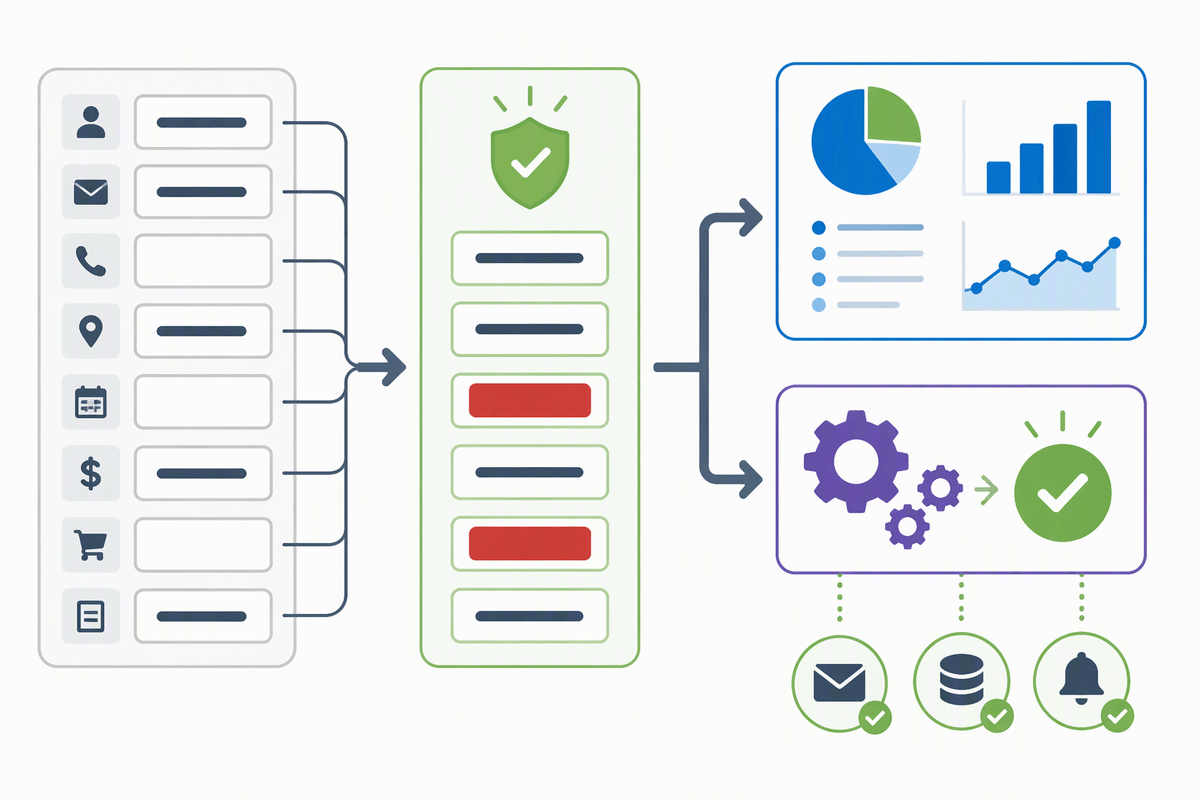
Blanks are where a base “works” right up until it doesn’t. A grouped view quietly drops records into “(empty),” a rollup returns nothing, or an automation condition like Status = Ready never fires because the upstream field is empty, not wrong. The fix is to stop treating blank as neutral. Give it a loud, intentional output so it can’t hide inside filters and joins.
A practical pattern is to create a computed “Safe” version of any critical field and make downstream logic use that instead of the raw input. For text: IF({Raw}="", "MISSING", {Normalized}). For dates: output something like “NO DATE” in a companion flag field, rather than trying to invent a fake date. For numbers: decide whether blank means zero or unknown, then encode it consistently. The cost is you’ll see more red flags at first, and someone has to own the cleanup queue, but you’ll stop shipping silent failures into reports and automations.
Validate formats before they become someone else’s problem
You can normalize text all day and still end up with records that “look fine” but fail when you actually use them. The usual culprits are formats that humans interpret loosely but automations and integrations treat strictly: emails with trailing spaces, phone numbers with extensions jammed in, invoice IDs with inconsistent padding, and URLs pasted without a protocol. These don’t always break inside Airtable, but they break the moment you try to send an email, match a record, or push data into another tool that expects a predictable shape.
Airtable formulas won’t give you full regex validation, but you can still catch most issues with lightweight checks and a clear flag field. Use FIND() to confirm an “@” exists in an email and that there’s a dot after it. For IDs, enforce a pattern like a prefix plus a numeric length (for example, IF(LEFT({Raw ID},3)!="INV","BAD ID", IF(LEN({Raw ID})!=10,"BAD ID","OK"))). For phone numbers, strip common punctuation and then check LEN() on the remaining digits. The constraint is you’ll get edge cases (international numbers, unusual domains), so treat “FLAGGED” as a review queue, not a hard stop.
Prevent category chaos with mapping and controlled output
You know category chaos is creeping in when a single concept turns into five buckets: “Bug,” “Bugs,” “Defect,” “Issue,” and “Bug - urgent.” Even if each label is reasonable, grouped views split, dashboards miscount, and automations that route by category start missing records. The fix is to separate what people are allowed to type from what the system is allowed to output. Keep the raw field if you need it for context, but create a formula “Mapped Category” that everything downstream uses.
Build the mapping like a small controlled vocabulary: normalize the raw text (TRIM, LOWER), then map known variants to one canonical value with nested IFs or SWITCH. For example, treat “defect” and “bug” as “Bug,” and treat blanks as “MISSING CATEGORY.” If you have multiple dimensions (type vs priority), don’t overload one field—map them separately so reporting stays stable. The practical constraint is maintenance: somebody has to add new variants as they appear, so keep the list short and review “OTHER” records weekly.
Turn fixes into a repeatable record-quality system
The difference between a “clean base” and a base that stays clean is turning these formula fixes into a small system people can follow. Pick a handful of critical inputs, then standardize the pattern: Raw field (what people type), Normalized field (what logic uses), and a Validation/Flag field (what needs attention). Create one view that filters to flagged records, assign an owner, and make it part of the weekly ops rhythm so issues don’t pile up until reporting breaks.
The constraint is time: if the cleanup queue has no owner, flags become noise. Keep the rules small, document the allowed outputs in field descriptions, and treat every new “weird value” as a mapping update or a form tweak—not a one-off manual fix.