Why Google Tasks Gets Overlooked
Many people try Google Tasks only after their to-dos have already spread across sticky notes, email threads, phone reminders, and memory. The app then seems too basic to solve the problem, so they add more labels, lists, or deadlines until managing the system becomes a task of its own.
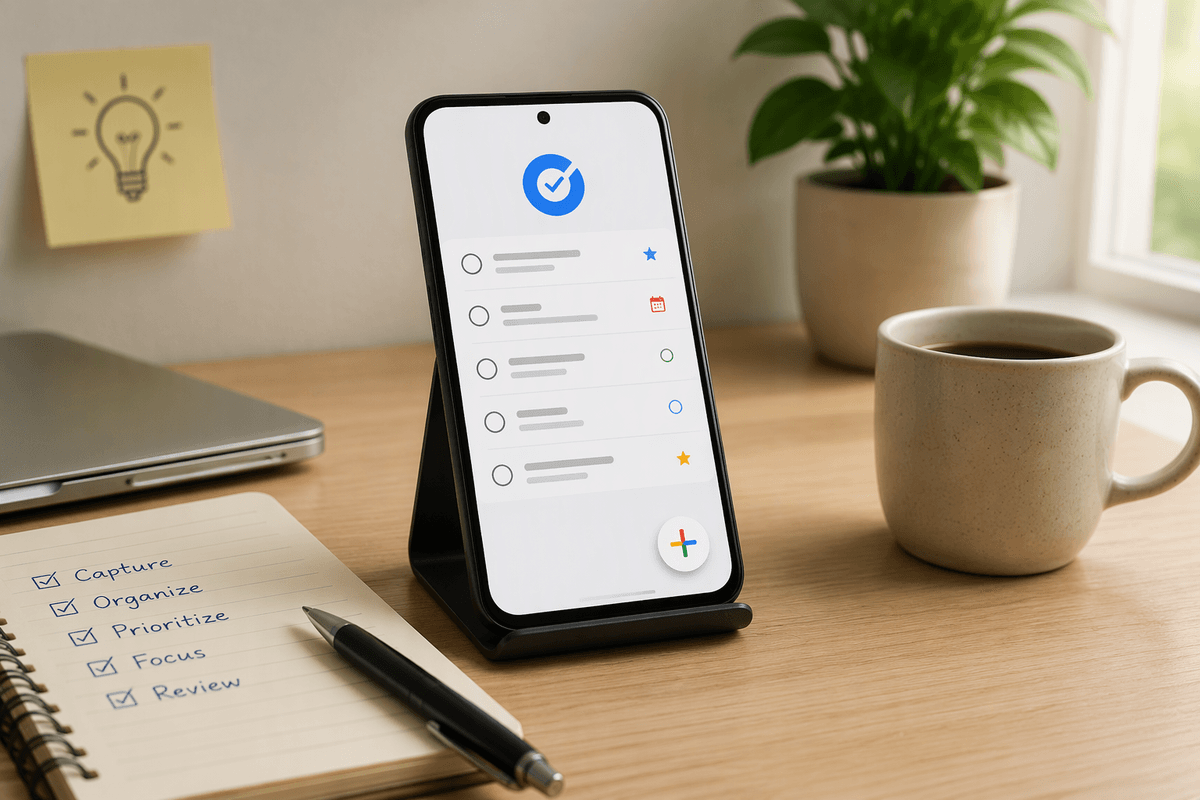
Google Tasks is easy to overlook because it works quietly inside tools people already use, including Gmail and Google Calendar. That simplicity is useful, but only when the system has a clear purpose. Tasks should hold specific actions, not vague intentions, and dates should identify real deadlines or planned work rather than fill every item with reminders. A small structure—one place to capture tasks, a few meaningful lists, and a short daily focus—usually works better than a complicated setup. The main challenge is consistency: Google Tasks cannot organize items you never record or review.
Start With a Clean Task List
Start by opening Google Tasks and removing anything that no longer deserves attention. Delete completed items, combine duplicates, and rewrite vague entries as clear actions. “Plan vacation” is difficult to act on; “Compare three hotels for the October trip” gives you a visible next step. If a task is no longer relevant, remove it instead of preserving it out of habit. A shorter list makes important work easier to recognize.
Then move remaining tasks into one dependable list, such as “Personal” or “Work,” rather than creating several categories immediately. Add a due date only when a deadline is real or when you have deliberately scheduled the work. A task with no date can still be valid, but it should not remain indefinitely invisible. Spend a few minutes checking email, notes, and your memory for missing items, then record them in the same place. The initial cleanup may take longer if your tasks are scattered, but it prevents Google Tasks from becoming another partial system.
Capture Every Task Quickly

When a task appears, record it before switching to something else. If a coworker asks you to send a file, add “Send the revised budget file to Maria” rather than trusting yourself to remember it. In Gmail, you can turn an email into a task so the message and action stay connected. For ideas that arrive away from your computer, add a short task from the Google Tasks app and refine the wording later.
Capture speed matters more than perfect organization at this stage. Use the first list that fits, write one action per task, and avoid stopping to decide every detail. You can add a due date, subtasks, or notes during a daily review. The practical limit is that quick capture can create a crowded inbox if nothing gets processed afterward. Set aside a brief review period to clarify vague items, move tasks to the right list, and delete entries that no longer matter. This keeps capture effortless without allowing unfinished thoughts to accumulate.
Use Lists to Separate Responsibilities
Once tasks are captured reliably, separate them by responsibility rather than by every possible project or context. Lists such as “Work,” “Personal,” and “Errands” are usually enough to show where an item belongs and what kind of attention it requires. For example, “Send the revised budget file” can stay in Work, while “Schedule a dentist appointment” belongs in Personal. This separation reduces the chance that a quick review of one area becomes distracted by unrelated tasks.
Keep each list broad enough to remain useful. Creating a separate list for every client, household project, or short-term goal can make the system harder to maintain, especially when tasks move between categories. Use subtasks or notes for supporting details, and reserve new lists for responsibilities that require a genuinely different review routine. A list should answer a practical question: “What area of my life am I looking at right now?” Review each list regularly, because an accurate structure is only helpful when tasks are moved, completed, or removed as circumstances change.
Decide What Belongs on Today’s Schedule
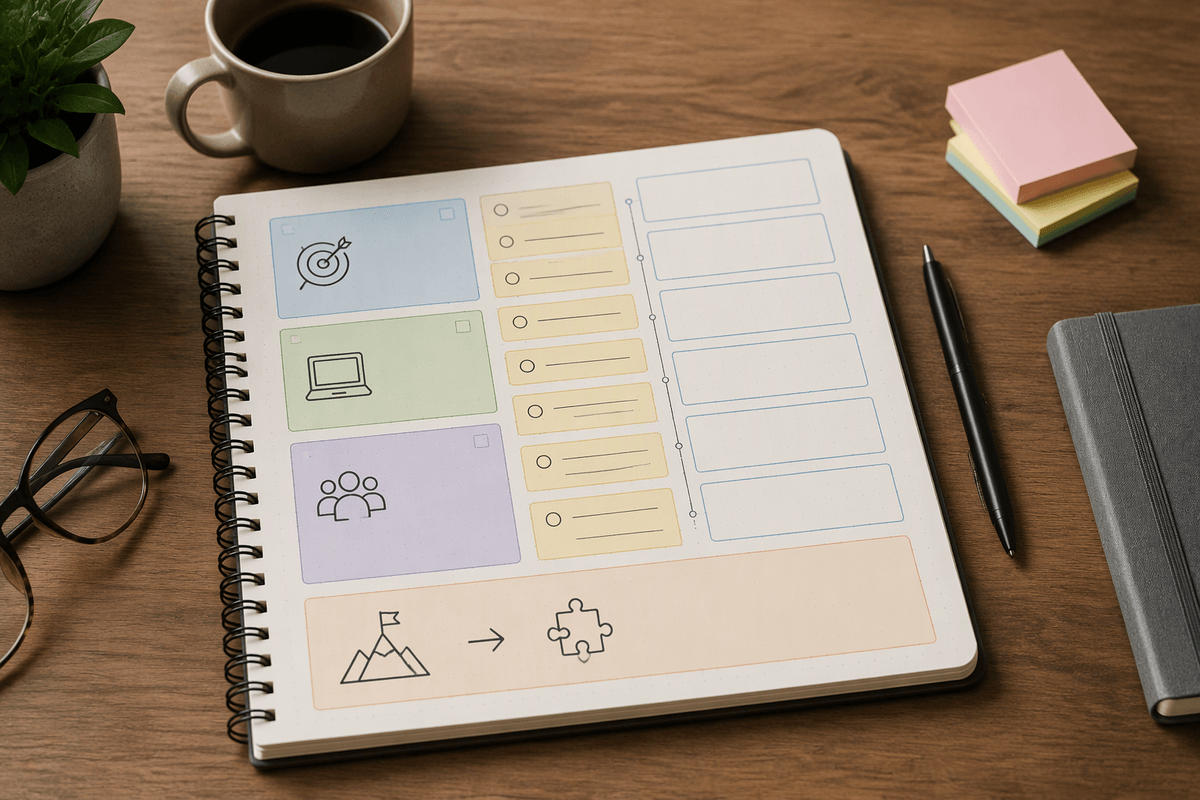
A long task list does not tell you what to do first. Each morning, review your dated tasks and choose a small number of items that genuinely fit the time and energy available. Include tasks with firm deadlines, appointments, or consequences if delayed, then add one or two important actions that move current work forward. For example, “Submit the expense report by Friday” may belong on today’s schedule, while “Research new office chairs” can remain undated until you have room for it.
Use Google Tasks dates to support this decision, not to label every task as urgent. If you assign today’s date to twenty items, the date stops helping you prioritize. A practical daily plan might contain three meaningful tasks, several quick actions, and enough open time for interruptions. Break large work into a visible step, such as “Draft the introduction” rather than “Finish the report.” At the end of the day, reschedule unfinished work deliberately. Moving a task forward is useful when the timing has changed; repeatedly postponing it without changing the plan usually means the task needs to be simplified, delegated, or removed.
Build a Routine You Will Keep Using
A routine works best when it fits the way your day already unfolds. Choose one short time to capture new tasks, such as after checking email, and another to review what is due, perhaps before you finish work. During the review, clear completed items, update dates that no longer fit, and choose tomorrow’s first priorities. Keeping these steps tied to existing habits makes them easier to remember than relying on motivation.
Use reminders selectively for tasks that must happen at a particular time, such as making a call before an office closes. For ordinary work, a due date and a daily review are often enough. Set a recurring task for routine maintenance, such as reviewing personal finances each Friday, but avoid turning every repeated activity into a notification. A review should take only a few minutes; if it regularly takes half an hour, the system is carrying too much detail. Missed days are normal. Resume by checking overdue tasks, removing anything irrelevant, and choosing a realistic focus for today rather than trying to rebuild the entire system at once.
Keep the System Simple and Sustainable
The system is sustainable when maintaining it takes less effort than remembering everything yourself. Keep only the lists, dates, subtasks, and reminders that help you make decisions. If a feature adds more checking without improving follow-through, stop using it. For example, you may need a Work and Personal list, but not separate lists for every project. Likewise, a task such as “Renew the car registration” may need a due date, while a general idea can remain undated until it becomes actionable.
Review the setup occasionally as your responsibilities change. Merge lists that no longer need separation, rewrite tasks that stay unclear, and remove recurring items you routinely ignore. Google Tasks will not prevent interruptions, missed deadlines, or changing priorities, and no system can replace judgment. Its value comes from giving you a reliable place to capture commitments and choose the next useful action without creating extra work.