What Calendar Sync Actually Changes
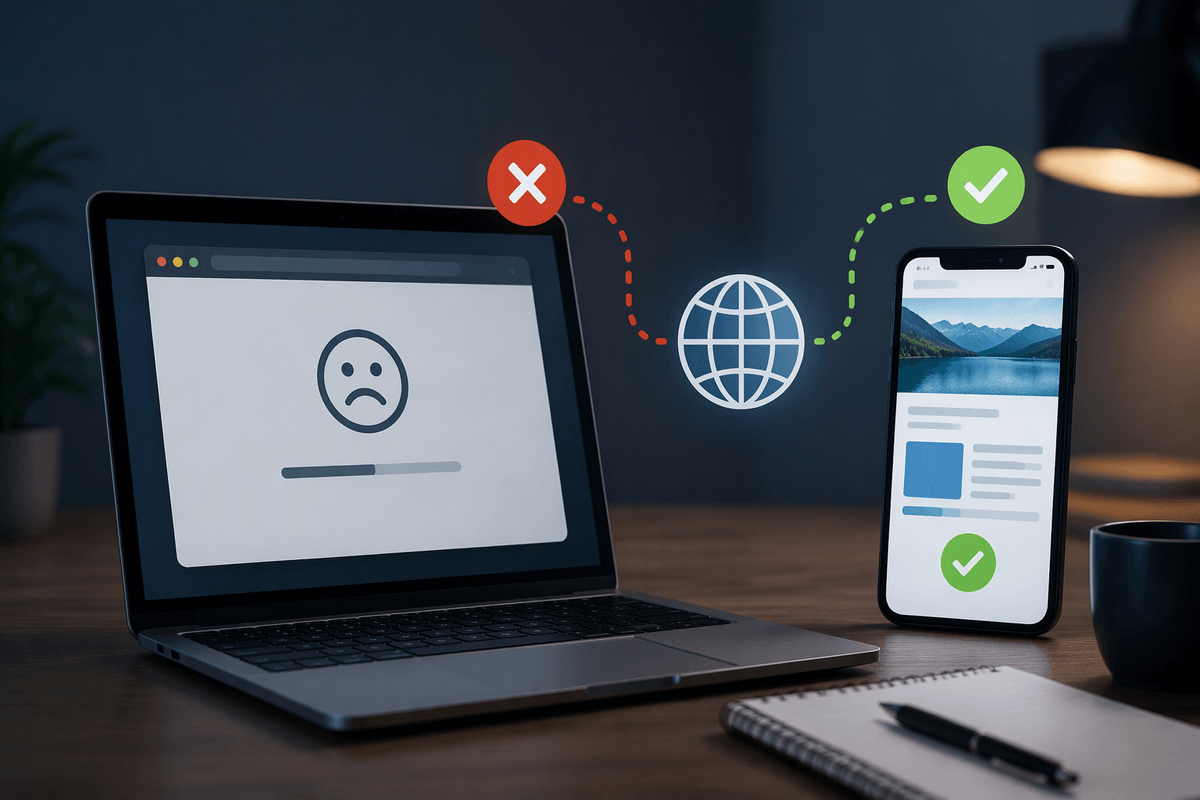
When you add an appointment on your phone, it may be saved only to that device or to an online calendar account. Only the second option can reliably share the event with your computer. Calendar sync connects both devices to the same account, then copies changes such as new events, time edits, cancellations, guest responses, and reminders between them.
That does not mean every calendar app automatically shares everything. A phone may contain separate calendars for a personal account, work account, or device-only storage. If your computer is signed in to a different account, or sync is turned off for one calendar, updates can appear to vanish. Sync also depends on an internet connection and may take a short time, so confirming the account and calendar source is the essential first step.
Choose the Calendar Account to Use
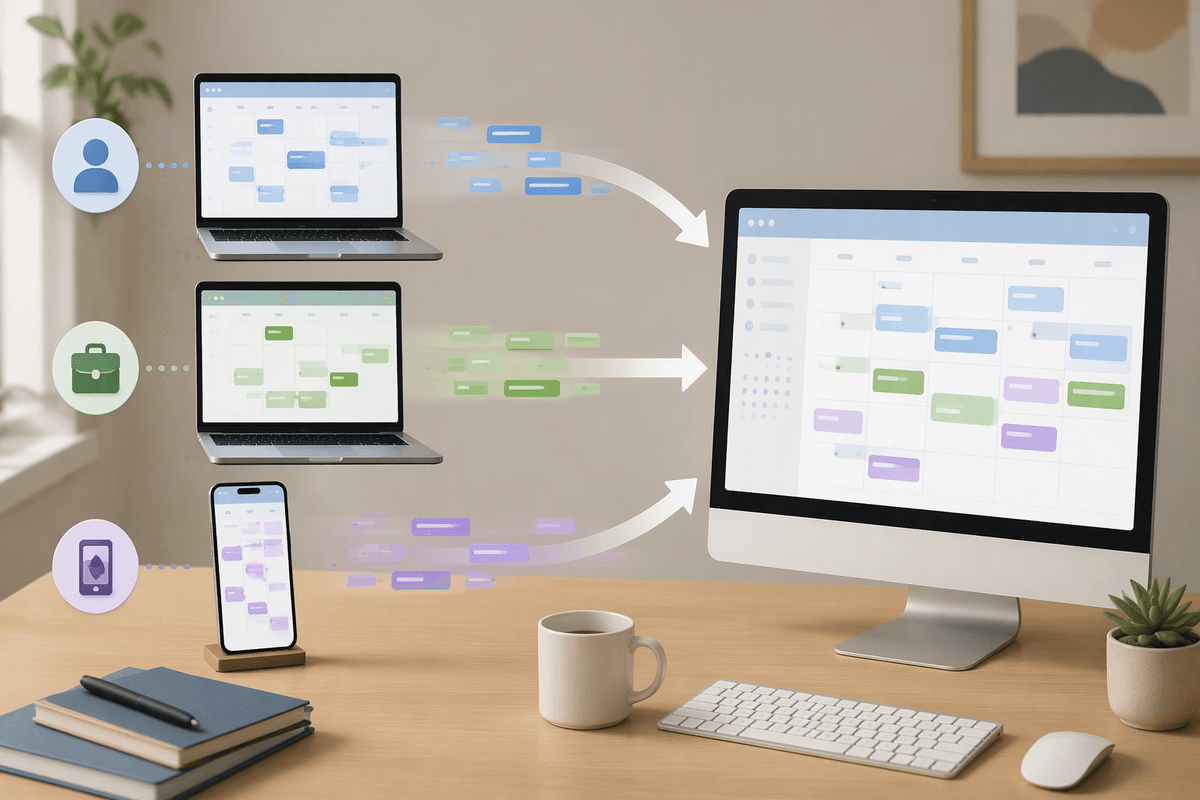
Start by identifying where your calendar events are actually stored. Common choices include a Google account, Microsoft account, Apple account, work account, or a device-only calendar. Open the calendar app’s account or calendar list and look for the account attached to your existing events. An event saved under “On My Phone,” “On My Computer,” or a similar device-only label will not reliably appear on another device.
Choose one main account for the calendars you want to share, then use that same account on both devices. If you have separate personal and work calendars, keeping both accounts may be appropriate, but decide which account should hold each type of event before changing settings. Avoid creating a new calendar account just because the existing one is not visible; that often produces duplicate calendars and scattered appointments.
If you are unsure which account contains an important event, open its details and check the calendar name or account field. Record that account before signing in elsewhere. Moving old events between accounts may require exporting, copying, or recreating them, and some reminders or attendee details may not transfer perfectly.
Sign In With the Same Account
Once you know which account should hold the events, sign in to that account on both devices. On the phone, open the calendar or account settings and confirm the email address or account name. Then check the computer’s calendar app or website and verify that it shows the same account, not merely a similar display name. Small differences, such as a personal Gmail address versus a work Google account, can place events in separate calendars.
After signing in, allow the calendar, contacts, and notification permissions the app requests, especially if reminders or meeting details matter. If the account was already connected, remove and re-add it only after confirming that events are stored online; deleting a device-only account can remove local information. Entering the same account on both devices does not automatically move events saved under another account, so keep the old account connected temporarily while checking what needs to be transferred.
Use the account’s calendar list to make sure the intended calendars are visible on each device. Hidden calendars can make synchronization appear broken even when the account connection is correct.
Turn On Calendar Sync on Each Device
With the same account connected, open sync settings on the phone and computer and turn on the calendars you actually use. On a phone, this may appear under Accounts, Passwords and Accounts, or the calendar app’s settings. On a computer, look for account, refresh, or connected-calendar settings. Enable calendar synchronization rather than only email or contacts, and make sure the specific personal, work, or shared calendars are selected.
Check the default calendar for new events as well. A device can sync an account correctly while saving new appointments to a local calendar. Set the default to the account you chose, then review reminder and notification permissions so alerts can appear on both devices. Shared calendars may require separate permission before they can sync.
Give the devices a moment to connect, then manually refresh the calendar if needed. Battery-saving modes, restricted background activity, weak internet access, or workplace security settings can delay updates. Do not repeatedly add the same event while waiting; that is a common cause of duplicates. If syncing remains delayed, compare the account and calendar names again before changing or deleting anything.
Test Events, Edits, and Reminders
Create a test event on your phone using the account and calendar you intend to share. Give it a distinctive name, such as “Sync check,” and set a time several minutes in the future. Wait for the event to appear on the computer, then open it there and confirm the title, time zone, location, and reminder are correct. If it does not appear, refresh both calendars and verify that you are viewing the same calendar rather than a hidden or device-only one.
Next, edit the test event on the computer by changing its time or adding a note. Confirm that the change reaches the phone before creating another test. Then delete the event from one device and make sure it disappears from the other. This checks two-way syncing instead of merely confirming that new events upload.
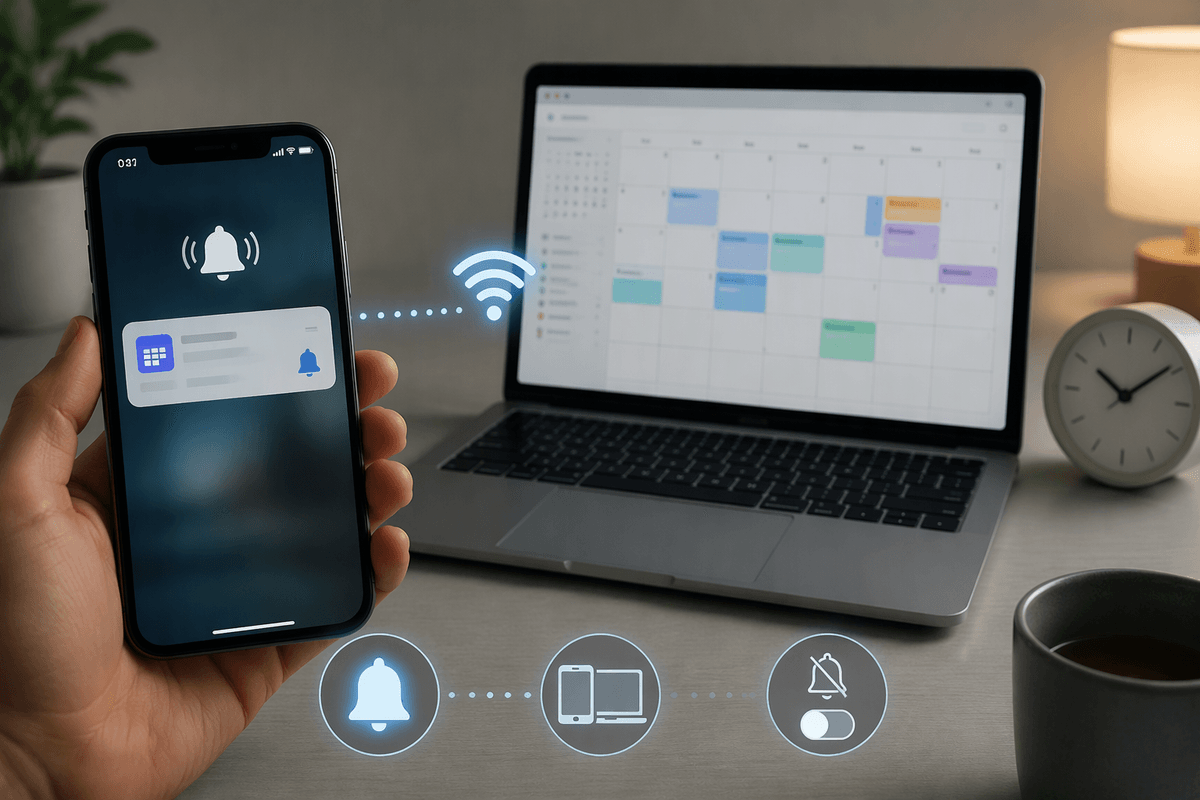
Test reminders separately because notification permissions and quiet modes can block alerts even when events sync correctly. Set a short reminder, keep both devices connected, and check which device is expected to notify you. Real appointments may sync quickly, but delays can occur when an app is closed, background activity is restricted, or the internet connection is unstable.
Fix Missing or Duplicate Calendar Events
When an event is missing, first check the calendar list and account shown on both devices. The event may be hidden, saved to a different account, or stored in a device-only calendar. Open the event details on the device where it appears and note its calendar name. Then refresh the other device, confirm internet access, and check whether background syncing is restricted. If only recent changes are missing, allow a few minutes before making another edit.
Duplicates usually come from adding the same account through two sync methods, such as a calendar app and a separate account subscription. Compare the duplicate events carefully before deleting anything. Keep the copy with the correct account, guests, reminders, and history, then remove the extra copy from its original calendar. If duplicates return, disable one connection at a time and refresh before testing again. Do not delete an entire account or calendar until you know whether it contains other appointments.
For stubborn mismatches, sign out and reconnect only after confirming that the important events exist online. Export or back up local calendars first, because device-only events may be lost during account removal. Recheck the default calendar afterward so new events do not continue going to the wrong place.
Keep Your Synced Calendar Reliable
Once syncing works, keep the setup simple and consistent. Use one primary account for shared events, leave only the calendars you need enabled, and check the default calendar after major app or device changes. Install updates, maintain reliable internet access, and avoid aggressive battery-saving settings that stop calendar apps from refreshing in the background. Review notification permissions periodically, especially after operating-system updates.
Make occasional backups of important device-only calendars and verify that key appointments appear online. When changing phones, computers, or account settings, test one new event before relying on the setup. If an update does not appear, check the account, calendar visibility, connection, and refresh status in that order. This routine prevents most missing-event problems without creating duplicates or risking useful information.