Two great choices, different priorities
You’re not choosing between “secure” and “insecure” here. You’re choosing which set of priorities matches how you actually live day to day. Bitwarden is the more mature, widely used option: it’s flexible across platforms, has deep organization and sharing features, and tends to fit people who mix devices, browsers, and workflows. Proton Pass makes the most sense when you already lean on Proton’s ecosystem and want a simpler, privacy-forward experience that feels consistent with Proton Mail.
The trade-off is practical: Proton Pass can feel cleaner and more integrated, but Bitwarden typically wins on breadth, admin-style controls, and long-term polish. Switching also has a real cost—imports aren’t always perfect, and you may spend an evening cleaning up fields, folders, and shared items.
What you’ll store and how you’ll use it

Most people start with logins, but your vault usually turns into a “small private archive”: credit cards, addresses, Wi‑Fi passwords, software licenses, and secure notes for things you don’t want in email. If you know you’ll rely heavily on that broader storage—lots of custom fields, tidy folder structures, or many different item types—Bitwarden generally feels more like a full-featured database you can shape to your habits. It’s the kind of difference you notice when you’re trying to store a membership number with a weird formatting rule, or keep work and personal items cleanly separated without fighting the UI.
If your reality is simpler—mostly logins, occasional notes, and you want fast autofill across your daily sites—Proton Pass can fit well, especially if your “vault use” is closely tied to Proton Mail and you want everything under one account and one billing plan. The limitation to watch is migration friction: whichever way you go, plan time to spot-check imports, verify TOTP/2FA entries, and confirm attachments or custom fields didn’t land in the wrong place.
Trust and transparency: open source vs ecosystem trust
Most people say they “trust” a password manager, but what they really mean is they trust the setup: the company’s track record, the app’s design, and how quickly problems get found and fixed. Bitwarden leans hard into transparency. Its code is open source and widely scrutinized, which doesn’t magically prevent bugs, but it does make it easier for independent researchers (and cautious employers) to verify how core parts work. If you’re the kind of person who wants the option to self-host or at least know you’re not locked into one vendor’s infrastructure forever, that trust model tends to feel concrete.
Proton Pass asks you to place more weight on ecosystem trust: Proton’s security posture, its history in privacy tools, and the convenience of keeping identity, billing, and recovery under one Proton account. That can be a perfectly rational choice—fewer moving parts often means fewer mistakes. The practical constraint is that ecosystem convenience can also raise the “single account” stakes: if you lose access to your Proton account or have a billing hiccup, you’ll want to be very sure your recovery and offline access options are exactly what you expect.
Autofill and everyday friction on each platform
You notice the difference between these two when you’re moving fast: logging into a bank on your phone, approving a 2FA code, then switching to a different app before the session times out. Bitwarden’s autofill experience tends to feel more “everywhere at once” because it has years of tuning across browsers and operating systems. When a site has multiple login forms, odd subdomains, or frequent UI changes, Bitwarden is often better at giving you the right match quickly—and letting you search, copy, or fall back to manual fill without fighting the interface.
Proton Pass can feel simpler and calmer for routine logins, especially if your day is mostly one or two browsers plus a phone. The friction shows up in edge cases: matching behavior on tricky websites, how often you have to tap to confirm the right item, and whether your preferred workflow relies on niche features like custom URI rules or very specific autofill prompts. Either way, expect some setup time per device—browser extensions, OS autofill permissions, and a short “test run” on your top 20 sites.
Sharing, families, and working with other people
You usually feel the sharing differences the first time someone texts “what’s the Wi‑Fi password?” or you need to hand off a streaming login without turning it into a screenshot-and-delete routine. Bitwarden’s sharing tends to suit households and small teams because it’s built around more mature “who can see what” controls, with clearer separation between personal items and shared collections. That matters when you want your partner to have the utilities logins but not your personal financial accounts, or when you need to rotate a password and be confident everyone’s seeing the updated entry.
Proton Pass sharing can be a good fit when your circle already lives in Proton accounts and you value keeping everything under the same identity and billing. The practical constraint is coordination: even great sharing features don’t help if half the family won’t install an app, won’t learn vault habits, or keeps reusing the same weak password. Before switching, list the 10–20 credentials you truly share and verify both the permission model and the “recovery plan” work for your least technical person.
Pricing and bundles: the plan you’ll really buy
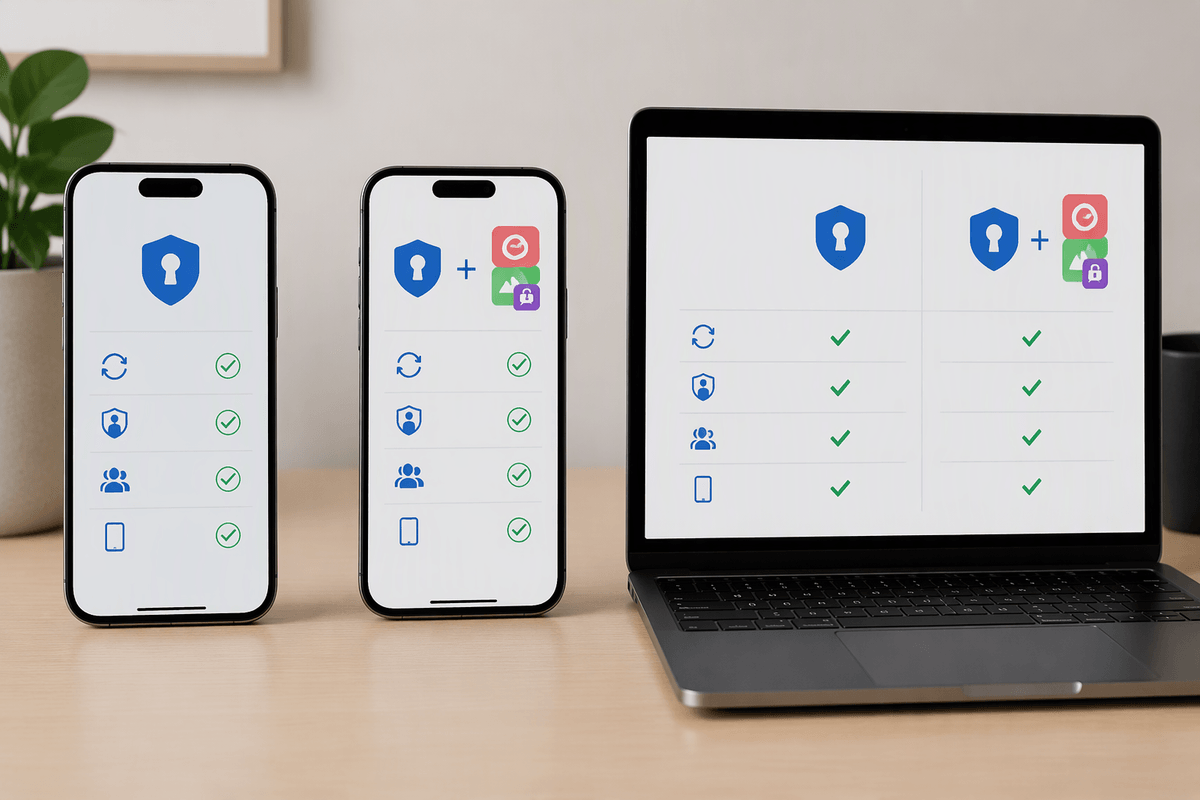
You’ll probably pay for the plan that removes the small daily annoyances: unlimited device sync, built-in 2FA/TOTP, secure sharing, and the ability to recover cleanly when you replace a phone. Bitwarden’s pricing tends to be straightforward: a low-cost Premium tier for individuals, plus Family/Teams options if sharing and permissions matter. The value is that you can “just buy the password manager” without committing to anything else, which is useful if you already pay for email, or cloud storage elsewhere.
Proton Pass often makes the most financial sense when it’s part of a Proton bundle you already want (Mail, Drive). In that case, the marginal cost of adding Pass can feel close to zero. The catch is that bundles can also hide the real decision: if you ever stop paying for the suite, you need to be comfortable with what downgrades, what stays readable/exportable, and whether your shared vault setup still works the way your household expects.
Quick recommendations for common buyer scenarios
If you want the safest “default” choice—especially with mixed devices, lots of vault organization, and a higher chance you’ll need sharing controls—pick Bitwarden. It’s usually the better fit for power-leaning habits without feeling complicated, and it’s easier to justify if you only want to pay for a password manager.
If you already pay for Proton (Mail/Drive) and you value having one account, one billing plan, and a simpler day-to-day app, Proton Pass is the practical pick. Just treat it as a bundle decision: confirm export options, test autofill on your top sites, and make sure you’re comfortable with Proton account recovery before you move everything over.