Why Your Alarm Sounds Too Quiet
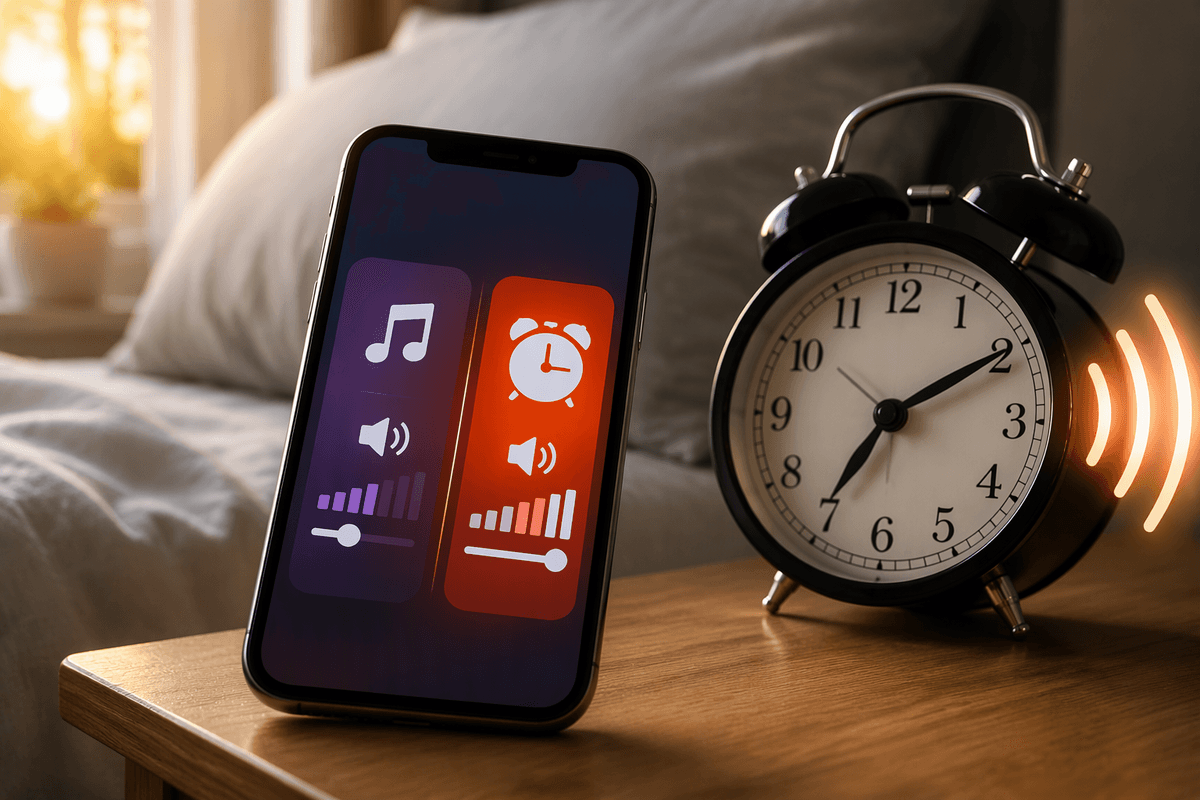
You turn up a video, close the app, and assume your morning alarm will be louder. Then the alarm sounds at nearly the same level the next day. This happens because iPhone treats alarm loudness and media playback as separate controls. The volume used for music, videos, and games does not automatically determine how loud a Clock alarm will be.
Alarm volume is adjusted through the Ringer and Alerts setting in Sounds & Haptics. That setting also affects other alerts and incoming ringtone volume, so raising it can make more than your alarm louder. The side buttons may change this level only if “Change with Buttons” is enabled. For a reliable wake-up alarm, adjust the correct control and test it rather than judging by media volume alone.
Alarm Volume Uses a Different Control
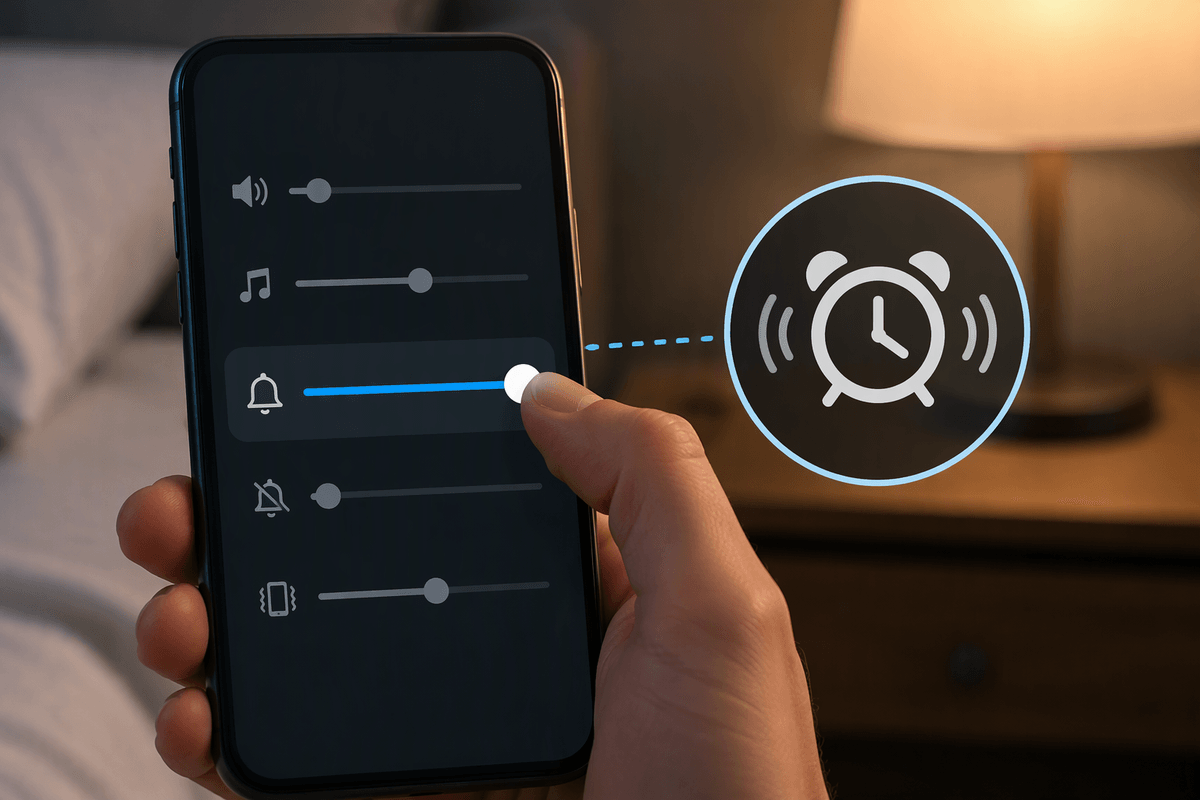
To change alarm loudness, open Settings, choose Sounds & Haptics, and adjust the Ringer and Alerts slider. The alarm uses this level even when music or video playback is set much lower or higher. You can enable Change with Buttons if you want the side buttons to control this setting, but that also makes it easier to lower the alarm accidentally while adjusting the phone for another task.
That shared control creates an important trade-off. Increasing Ringer and Alerts can make your alarm easier to hear, but it also raises incoming call ringtones and notification sounds. If you prefer a quieter phone during the day, leave the side-button option disabled and set the slider manually. Then open the Clock app, create a test alarm for a few minutes ahead, and confirm the selected sound is audible where you normally sleep. This checks the actual alarm behavior instead of relying on the volume indicator from another app.
What Media Volume Actually Changes
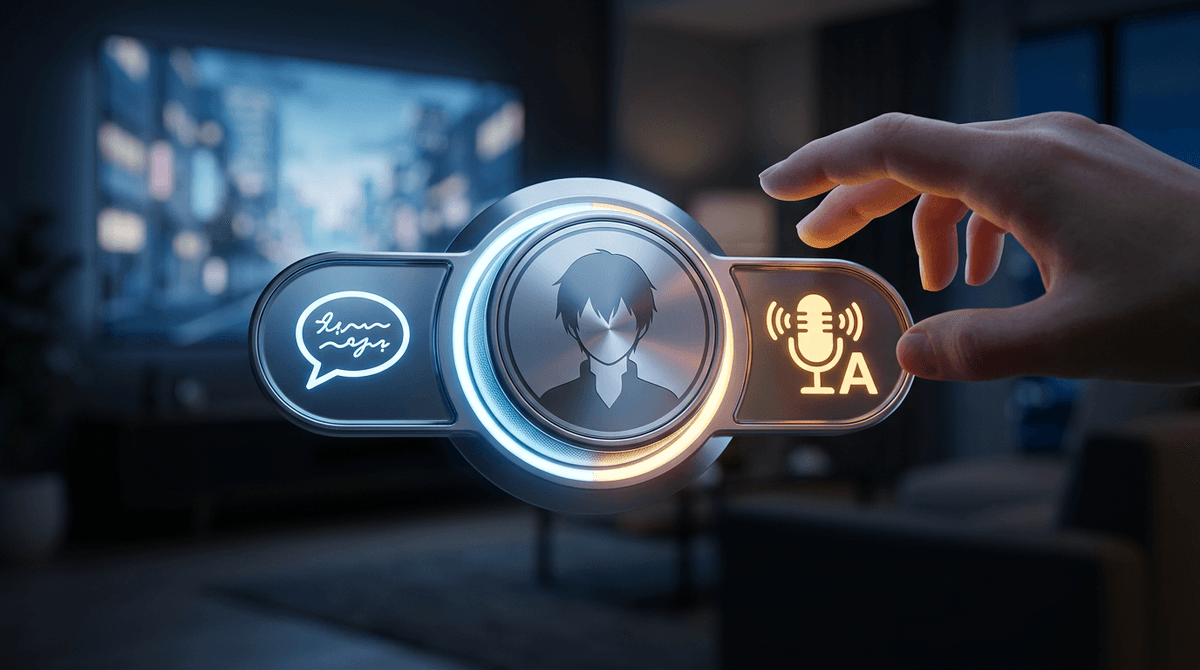
Media volume controls sounds produced while you are actively using an app, such as music, podcasts, videos, games, and some audio calls. Pressing the side buttons while media is playing usually changes that playback level, which is why the on-screen indicator can be misleading when you are trying to judge an alarm. A video may sound quiet even though your wake-up alarm is set high, or the reverse can be true.
This separation is useful because lowering a movie before bed does not necessarily lower the alarm you set in Clock. It also means raising music volume is not a dependable way to prepare for the morning. Use the Ringer and Alerts slider for the alarm, then use media controls separately for entertainment. One practical limitation is that media volume can still affect sounds you hear during a test if the alarm is not the source you are checking. Set a short test alarm, stop playback, and listen in the room where the phone will rest overnight. That makes it easier to identify the actual alarm level.
When an Alarm Still Sounds Different
Even with Ringer and Alerts set correctly, an alarm may seem quieter because another setting changes what you hear. On iPhone models with Face ID, Attention Aware Features can lower alert volume when the phone detects that you are looking at it. If this happens during a test, the alarm may sound different when you pick up the phone or watch the screen. You can turn that feature off in Settings under Face ID & Passcode if it interferes with your testing.
Also check the alarm’s individual sound. In Clock, open the alarm, tap Sound, and make sure it is not set to None or to a tone that is difficult to hear. Connected headphones do not necessarily redirect the alarm away from the iPhone’s built-in speaker, so test the phone where it will sit overnight. A case, blanket, or soft surface can muffle the speaker, while placing the phone across the room changes how loud it seems. These factors do not change the volume setting, but they can change whether the alarm wakes you reliably.
The Settings That Do Not Silence Alarms
Several settings that silence other iPhone sounds do not normally silence a Clock alarm. The Ring/Silent switch can mute ringtones and notifications, but a scheduled alarm should still play through the iPhone speaker. The same applies to Do Not Disturb and other Focus modes. This is useful at bedtime because you can reduce interruptions without removing the wake-up alarm. It also means switching the phone to silent is not a valid test of whether the alarm is configured correctly.
Other settings can still create confusion. A Focus mode may hide notifications, while a Sleep Focus schedule may change the screen or notification behavior without replacing the alarm’s volume control. If an alarm seems silent, check its individual Sound setting first, then confirm that Ringer and Alerts is turned up. Make sure the alarm is enabled and that the selected tone is not set to None. The practical limitation is that these protections do not guarantee the alarm will be easy to hear if the speaker is blocked, the phone is far away, or the chosen tone is too subtle. Test the complete setup before relying on it.
A Quick Test Before You Rely on It
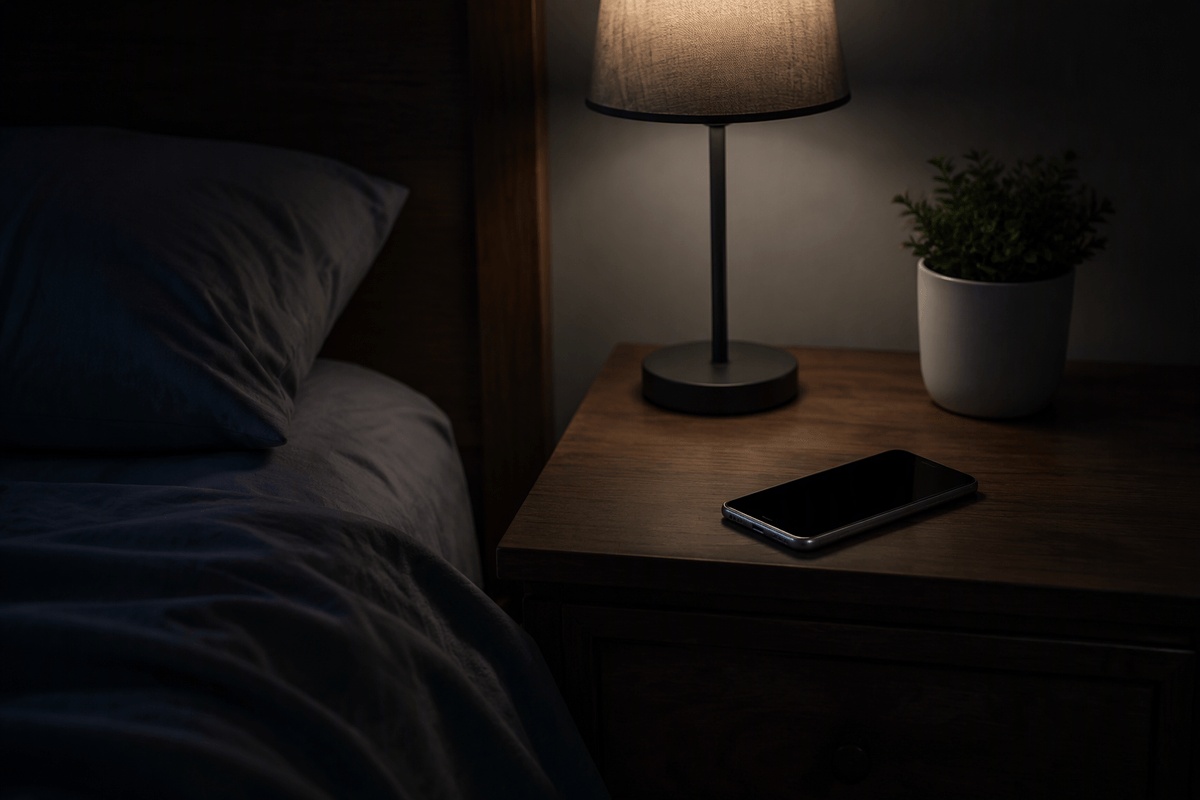
A short test can reveal problems that the settings screen cannot. Set a temporary alarm for two or three minutes ahead, then close music and video apps, place the iPhone where it will sit overnight, and let the screen lock. Keep the phone at the intended distance and avoid holding it in your hand, since a nearby speaker can make a weak alarm seem adequate. When it sounds, confirm that the tone is clearly audible without relying on the vibration or the display.
If the alarm is too quiet, open Settings, choose Sounds & Haptics, and raise Ringer and Alerts rather than increasing media volume. Run the test again after making the change. Check that the alarm’s Sound is not set to None, and listen with the phone uncovered if it will normally rest on a table or nightstand. This test has a practical cost: it takes a few minutes and may disturb other people, especially if you repeat it at night. For that reason, perform it during the day and use the same case, placement, and alarm tone you plan to use when sleeping. Once the test is clear, avoid treating a loud video or game as evidence that the alarm is equally loud.
The Simple Rule to Remember
The simple rule is: use Ringer and Alerts for alarm loudness, and use the media controls only for music, videos, podcasts, and games. If the alarm seems too quiet, open Settings, choose Sounds & Haptics, and adjust Ringer and Alerts. Remember that this also changes incoming call and notification volume, so raising it may make the phone louder during the day.
After changing the setting, test a short alarm with the phone placed where it will stay overnight. Confirm that the selected sound is audible, the alarm is enabled, and the speaker is not covered. A loud video does not prove that the alarm is loud enough, and a silent switch or Focus mode is not a substitute for testing. Set the correct control once, verify the complete setup, and keep media volume separate from your wake-up routine.