Why Long PDFs Feel Hard to Navigate
Opening a long PDF often seems simple: enter a word, scan the results, and jump to the right page. In practice, a document may contain hundreds of pages, repeated headings, footnotes, tables, appendices, and sections that use different terms for the same idea. A search can return many matches without showing which one matters.
Scrolling creates a different problem. After finding a useful passage, readers may lose their place while checking another section, then spend several minutes trying to return. Page numbers can help, but they are easy to forget and may not match the PDF’s printed numbering. Efficient navigation requires more than finding text once; it requires a reliable way to narrow results and mark important locations for later use.
Start With the Right Search Terms
The first search term that comes to mind is not always the most useful one. A broad term such as “method,” “results,” or “policy” may appear dozens of times, especially in reports with recurring headings and references. Start with the most specific phrase you remember, such as a technical term, a person’s name, a section heading, or two words that commonly appear together. Exact phrases can reduce unrelated matches and reveal the document’s preferred wording.
When the first search produces too many results, refine it rather than scrolling through the entire list. Add a distinctive qualifier, try a related term, or search for a heading instead of a general concept. If you are looking for a discussion of employee retention, for example, searches for “retention,” “staff turnover,” and “employee departures” may lead to different sections. Also try singular and plural forms, abbreviations, and alternate spellings. The goal is not to find one perfect query immediately, but to test a few focused terms until the results point toward the right part of the document.
Use Search Results to Narrow the Document
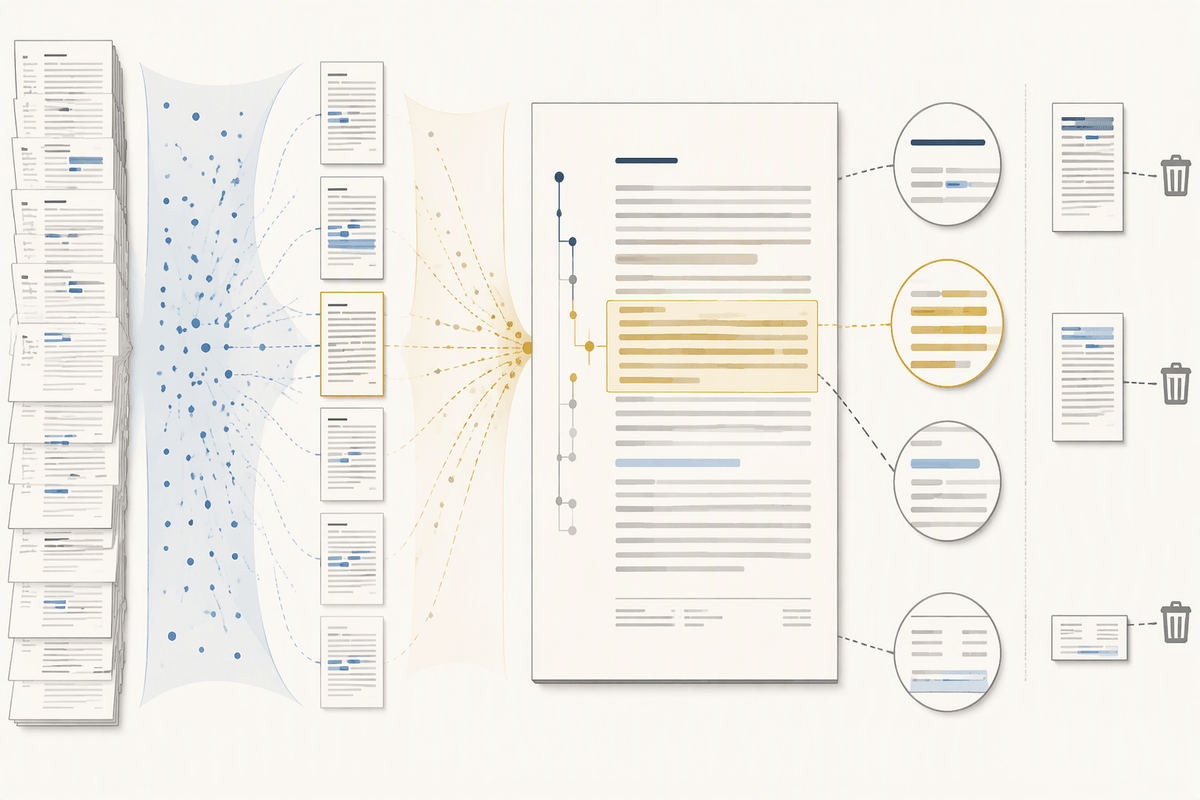
Once a search returns several matches, use the results list as a map rather than opening entries at random. Check the page numbers, nearby headings, and snippets for patterns. A cluster of matches on consecutive pages often points to the main discussion, while isolated hits may come from the table of contents, references, or footnotes. Open the most promising result and read beyond the highlighted term. The surrounding paragraph usually tells you whether you have found a definition, an example, a key argument, or only a passing mention.
Use the document’s structure to narrow the field further. If the relevant match appears under a chapter heading, search that heading or another distinctive phrase from the same passage. Then compare nearby results instead of returning to the full document each time. Many PDF readers let you move between matches with the keyboard or search panel, which is faster than closing and reopening the search box. Be careful with repeated terms in headers and footers, since they can create misleading results. Confirm the section’s context before treating a match as useful, especially in reports with similar language across multiple chapters.
When Scanned Pages Block Your Search
Sometimes a search returns no matches because the page is not made of searchable text. Scanned reports, photocopied articles, and older forms may display clear words while storing each page as an image. In that case, the search tool cannot recognize the content, so scrolling or guessing different search terms will not solve the problem. Check whether you can select individual words with your cursor. If you can select only the whole page or nothing at all, the document probably needs optical character recognition (OCR).
When OCR is available, create a searchable copy and review the results carefully. Recognition errors are common with small print, skewed pages, handwritten notes, columns, and tables. A name may be misread, or a hyphenated word may be split across lines. Search for shorter distinctive fragments, nearby headings, or several variations of the term. If OCR is unavailable, use visible page numbers, the table of contents, or section labels to narrow the location, then bookmark the page manually. This takes more effort, but it is usually faster than repeatedly scanning the entire document.
Turn Important Locations Into Bookmarks

After locating a useful passage, save its position before moving elsewhere. A bookmark is more reliable than trying to remember a page number, especially when the PDF uses separate printed and file page numbers. Name bookmarks according to their purpose, such as “Research question,” “Methods table,” or “Citation to verify,” rather than using vague labels like “Important.” Clear names make the navigation panel useful later.
Create bookmarks for locations you expect to revisit, not every page that contains a search match. Good candidates include the main definition, a key piece of evidence, a table or figure, an unresolved detail, and the document’s references. If the reader allows it, organize them in a simple order that matches your task or notes. Some PDFs are read-only, and others do not preserve added bookmarks when opened in a different application. In those cases, record the page number and a short identifying phrase in your notes as a backup. The small amount of labeling pays off when you need to compare sections or return to a source days later.
Build a Simple Search-and-Bookmark Workflow
A simple workflow can prevent most repeated scrolling. Begin with a focused search term, review the nearby matches, and open the passage that best fits your purpose. Once you confirm its context, create a bookmark immediately and give it a specific name. Then continue searching for related evidence, definitions, tables, or exceptions, bookmarking only locations you are likely to revisit. This turns an unfamiliar document into a small set of dependable reference points.
Keep your notes and bookmarks aligned. If you record a quotation, claim, or question, include the bookmark name beside it so you can return to the source without searching again. A practical sequence is: search, verify the surrounding section, bookmark the location, record why it matters, and move to the next term. Save the PDF after making changes, and check that the bookmarks remain available when you reopen it. Some readers do not preserve edits reliably, so page numbers and short identifying phrases provide useful backup. With this routine, navigation becomes a repeatable process rather than a series of guesses.
Navigate With Less Repeated Scrolling
With focused searches and bookmarks in place, move through the document by jumping between saved locations instead of dragging the scrollbar. Open a bookmark, read enough surrounding text to understand the point, then return to the navigation panel and select the next location. This is especially useful when comparing a definition with its evidence, checking a table against the discussion, or reviewing several sections before writing notes. Keyboard shortcuts for opening search, moving between matches, and returning to the previous view can make these jumps even faster.
Keep the navigation panel visible when space allows, and close it only when the reading area becomes too cramped. Avoid creating bookmarks for every search result; a crowded list slows decisions just as much as repeated scrolling. A small set of clearly named locations, supported by page numbers and brief notes, gives you a dependable route through the PDF. The aim is not to eliminate every page change, but to make each movement deliberate and easy to repeat.