Your day is fine—until the tiny taps add up
You’re not usually “wasting time” on your phone in a big, obvious way. It’s the small stuff: unlocking, pulling down the shade, dismissing a notification, jumping back to the app you were just in, hunting for the one setting you use twice a day. Each action takes a second. Together, they quietly turn a simple check-in into a few minutes lost—then another few minutes after you get pulled into something else.
Android can reduce a lot of that with features you already have, but they’re spread across Settings, Quick Settings, and app-specific menus. Even when you find them, some changes feel awkward for a day or two (a new gesture, fewer alerts), which is why they don’t stick. The goal here is to make a short set of tweaks you’ll actually keep.
Start by noticing what you repeat on an average weekday: the interruptions you always clear, the screens you always bounce through, and the “I’ll do it later” tasks you keep reopening. Those patterns point to the fastest wins.
Pick three pain points worth fixing this week
A typical weekday has the same handful of moments where your phone slows you down: you silence the same group chats, you jump between two apps to copy something, you toggle Wi‑Fi or Do Not Disturb in a hurry. Don’t try to fix everything. Pick three problems you feel at least five times a day, because those are the ones that pay you back quickly.
Choose one “interruptions” pain (notifications that pull you off task), one “navigation” pain (getting back to what you were doing), and one “routine” pain (a setting you flip on and off). Write them as plain actions: “stop work pings after 6,” “switch between Maps and Messages fast,” “turn on hotspot during class.” If you can’t describe it in one sentence, it’s too big for this week.
Be realistic about the annoyance cost. Fewer alerts can mean missing a real update, and new gestures feel wrong until your muscle memory catches up. With your three targets set, the easiest win usually starts with what’s allowed to interrupt you.
Notifications: decide what deserves to interrupt you
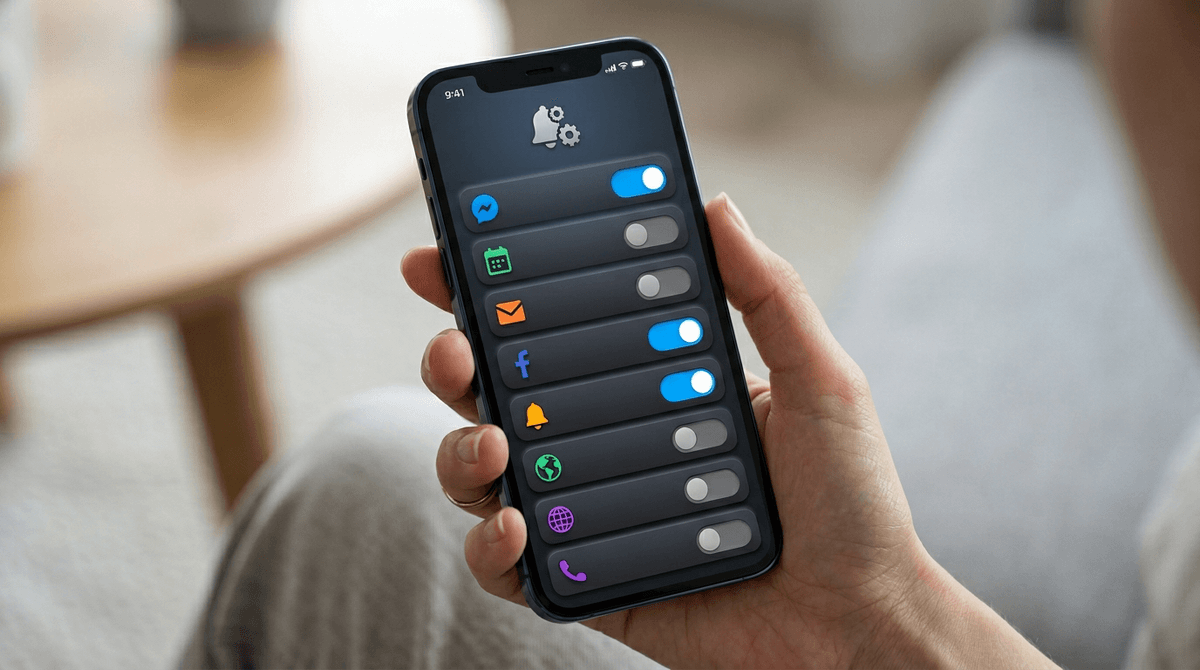
You’re in the middle of something and your phone lights up. You glance down “just to clear it,” then realize you’ve opened the app. The fix isn’t hunting for a perfect focus mode. It’s deciding which alerts deserve immediate attention, and turning the rest into something you can check on your schedule.
Start with the two apps that interrupt you most. On Android, press and hold one of their notifications, then tap Turn off notifications or Settings. Keep only the categories that are truly time-sensitive. For example: keep direct messages, but mute “suggestions,” “activity,” “reminders,” and “shipping updates.” If you can’t tell what a category does, toggle it off for a day and see what you miss.
For the alerts you still want, change how they arrive. Make them silent (no sound or pop-up), or reserve interruption for a short VIP list (your manager, a family member, your calendar). The annoying part: every app labels categories differently, so you’ll spend a few minutes decoding them before it gets easier.
Quick Settings that match your routine, not Android’s defaults
You’re headed into a meeting and suddenly need silence, brightness down, and hotspot off. The fastest way shouldn’t be digging through Settings or swiping three times to find the right tile. Quick Settings is built for these moments, but the default layout often reflects “generic Android” more than your day.
Pull down twice to fully open Quick Settings, then tap the pencil/Edit button (on some phones, it’s in the three-dot menu). Drag your top 6–8 tiles into the first page so they’re available immediately. Good routine fits for most people: Do Not Disturb, Flashlight, Hotspot, Bluetooth, Location, and a Sleep/Bedtime toggle if you use it. If you keep opening Wallet or QR code scanning, put it here too.
Too many tiles slows you down, and a few are easy to hit by accident (Hotspot, Auto-rotate). Once Quick Settings is “yours,” it’s easier to commit to navigation shortcuts that keep you in the right app.
Stop bouncing around: navigation shortcuts you can commit to
You check a message, then you need to get right back to what you were doing—and instead you bounce: Recents, swipe, wrong app, back, repeat. The fix is picking one or two navigation moves and using them everywhere until they become automatic.
Start with Android’s “back” gesture. Go to Settings → System → Gestures → System navigation, and use gestures if you can tolerate the learning curve. Then turn on a fast switch: on many phones, a quick swipe along the bottom bar switches between your last two apps, which is perfect for copying a code from email into a banking app or jumping between Maps and Messages.
The annoying part is misfires—especially with apps that use side swipes. Give it two days before you undo it, then decide what you’ll use when one screen still isn’t enough.
When one screen isn’t enough, what’s your fallback?
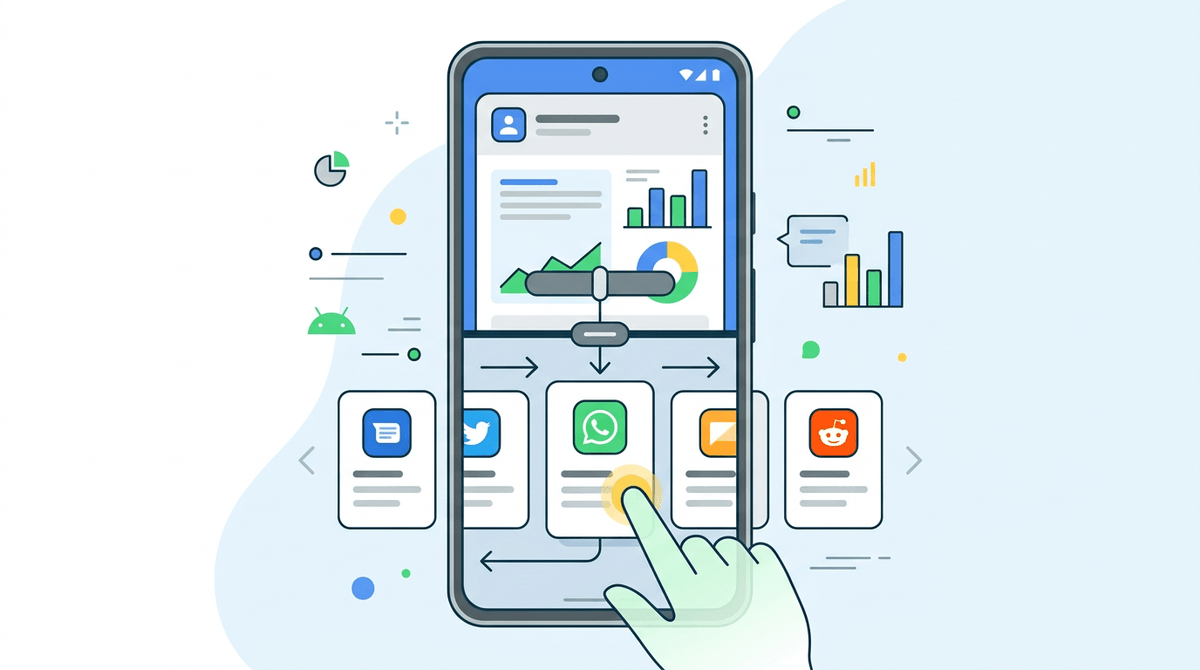
You’re trying to reply to a message while keeping an address visible, or you’re reading a PDF while taking notes, and the app switching starts again. When you hit that moment more than once a day, it helps to pick a “two-things-at-once” fallback that’s always the same, so you don’t burn time deciding.
On many Android phones, split screen is the simplest option. Open Recents, tap the app icon at the top of the card, then choose Split screen, and pick your second app. It’s great for Calendar + email, Maps + Messages, or Docs + browser. The real limit is that some apps don’t support it well, and text can feel cramped on smaller screens.
If split screen feels tight, use a faster “peek” instead: long-press to copy info, then switch back with the bottom-bar swipe. Once you know your fallback, you can start automating the repeats.
Automate the repeats without building a complicated system
You leave the same places at the same times, connect to the same earbuds, open the same apps, and still end up flipping the same switches by hand. That’s the kind of repeat Android can handle quietly, without you setting up a whole “automation hobby.” Start with what already exists on most phones: Rules (or similar) and simple device routines. In Settings, search “Rules,” then try one: when you connect to your car’s Bluetooth, turn on Do Not Disturb; when you arrive at campus, silence everything except calls from favorites.
If your phone doesn’t have Rules, use what it does have: set Wi‑Fi to auto-connect, keep Bluetooth on for a week and rely on battery saver later, and use Do Not Disturb schedules so you stop toggling it nightly. One bad rule (like silencing alerts during a real emergency) makes people abandon automation entirely. Keep it to one change, then live with it for two days before adding another.
Lock it in: a 10-minute review that keeps it working
You set this up once, then a week later your notification list creeps back and Quick Settings gets messy again. Put a 10-minute review on your calendar every Friday afternoon. Open Settings and search Notifications, then check the last two apps that annoyed you and mute one more category. Pull down Quick Settings, tap Edit, and move the tiles you used most into the first page (remove one you never touched).
Then sanity-check your “fallbacks”: try the bottom-bar app switch twice, and open split screen once. If it still feels awkward after two weeks, undo it. The goal is a setup you can keep without thinking.