When Gmail messages “don’t arrive,” what’s happening?
You’re waiting on an email you need—an invoice, a sign-in code, a client reply—and it never shows up in your Inbox. Most of the time, that doesn’t mean the sender “didn’t send it” or Gmail “lost it.” It means the message landed somewhere else (Spam, Promotions, Updates), got rerouted by a filter, was blocked, or was moved out of Gmail by forwarding or another email app pulling it in through POP/IMAP.
Less often, the message truly fails to deliver. That can happen when your storage is full, the sender’s system gets a bounce, or there’s a temporary delivery delay. The tricky part is that several of these problems look identical from your side: nothing new appears. The quickest wins come from checking where mail is being sorted or moved before assuming delivery failed.
Confirm it’s truly missing, not just hard to find
You’ve probably seen this: you’re sure an email “never arrived,” then it turns out it did—just not where you expected. Before changing settings, search for the message in a way that bypasses the Inbox view. In the Gmail search box, try the sender’s email address (or domain like @vendor.com), a distinctive subject word, or a unique phrase from the email. If you’re looking for a recent message, add a date hint like newer_than:7d.
If search finds it, open it and look at the label trail near the top (for example: Inbox, Spam, Promotions) to see where it landed. If search doesn’t find it, check you’re in the right account and right place: switch accounts if you use multiple Gmail logins, and verify you’re not searching a different view (like “All inboxes” in a mail app). This step saves time because “missing” often means “misfiled,” not “undelivered.”
Check Spam, Promotions, and other tabs first
The most common “it never arrived” scenario is that it did arrive, but Gmail didn’t treat it as Primary mail. On desktop, click the Spam and All Mail labels on the left (you may need More to reveal them). If you find the message in Spam, open it and click Not spam—that both rescues it and helps prevent repeats. On mobile, open the menu (three lines) and check Spam and All mail there as well.
Also check the tabs across the top of your Inbox: Primary, Promotions, Social, and sometimes Updates or Forums. A password reset can land in Updates; a quote or invoice can land in Promotions. One practical limitation: Spam auto-deletes after about 30 days, so if you wait too long, recovery may not be possible from Gmail alone.
Filters and blocked senders that silently reroute mail
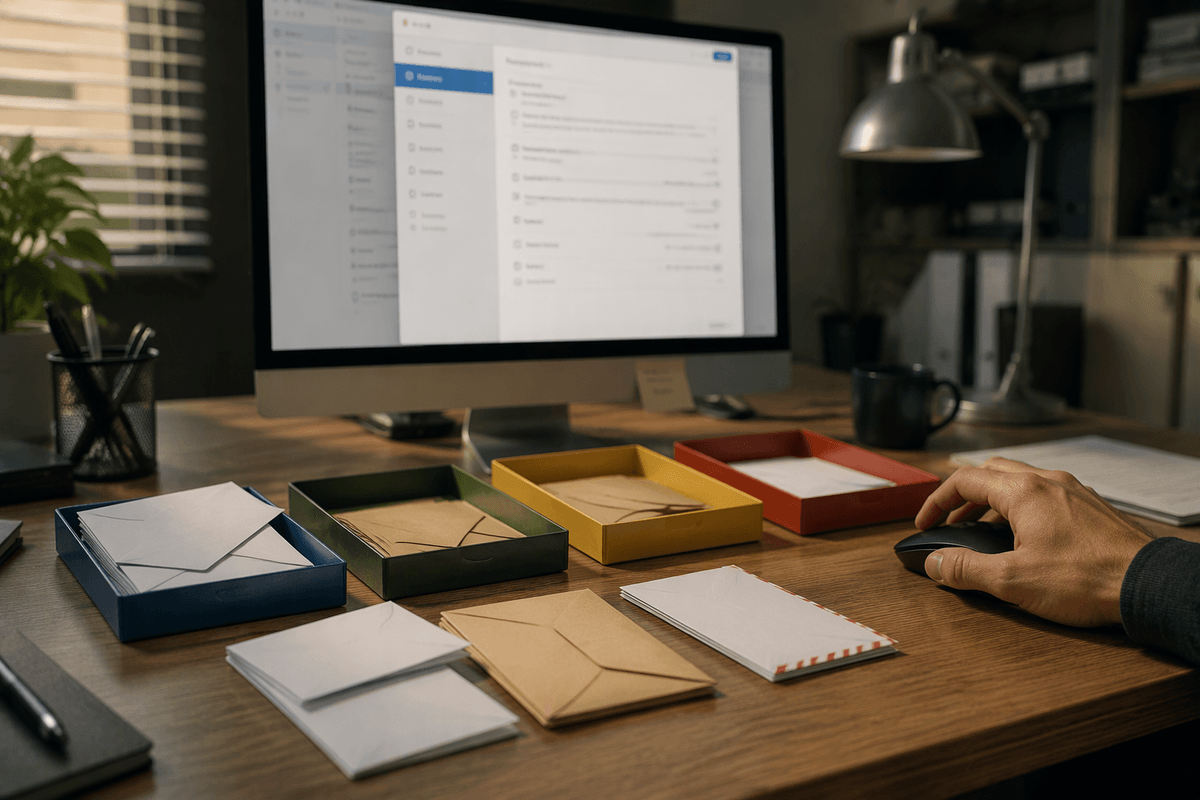
You’ll also run into “missing” mail that’s being moved on arrival by rules you set months (or years) ago. On desktop Gmail, click the gear icon, choose See all settings, then open Filters and Blocked Addresses. Scan for filters that match the sender (or a keyword like “invoice” or your company name) and do actions like Skip the Inbox (Archive it), Delete it, or Apply the label. A filter that skips the Inbox can make messages look like they never arrived, even though they’re sitting under a label or in All Mail.
On the same page, check the blocked list. Blocked senders usually land in Spam, so it’s easy to miss if you only watch the Primary tab. If you find a filter or block that’s too broad, edit it to be more specific or remove it. The practical downside: if a filter was deleting mail, you often can’t recover older messages unless they’re still in Trash (which also auto-deletes after about 30 days).
Forwarding, POP/IMAP, and other apps pulling mail away
You can also have “missing” mail because something else is collecting it first. In Gmail on desktop, open Settings and check Forwarding and POP/IMAP. If forwarding is on, Gmail may be sending a copy to another address (or in some setups, moving it out of your Inbox depending on your forwarding choice). If POP is enabled and you use an older mail program, it may be downloading messages and marking them as read or archiving them, which makes your Inbox look quiet even though mail arrived.
Then check the places you read mail. Apple Mail, Outlook, Thunderbird, and many phone “Mail” apps can be connected to Gmail and set to archive, move, or delete when you swipe. Also look at third-party services (CRMs, ticketing systems, “shared inbox” tools) that connect to Gmail—some are authorized to read and manage mail. In Gmail, go to Settings > Accounts and Import and Security to review connected apps and remove anything you don’t recognize. The trade-off is convenience: disconnecting an app can break syncing or automation until you reconfigure it.
Storage, account limits, and delivery failures to look for
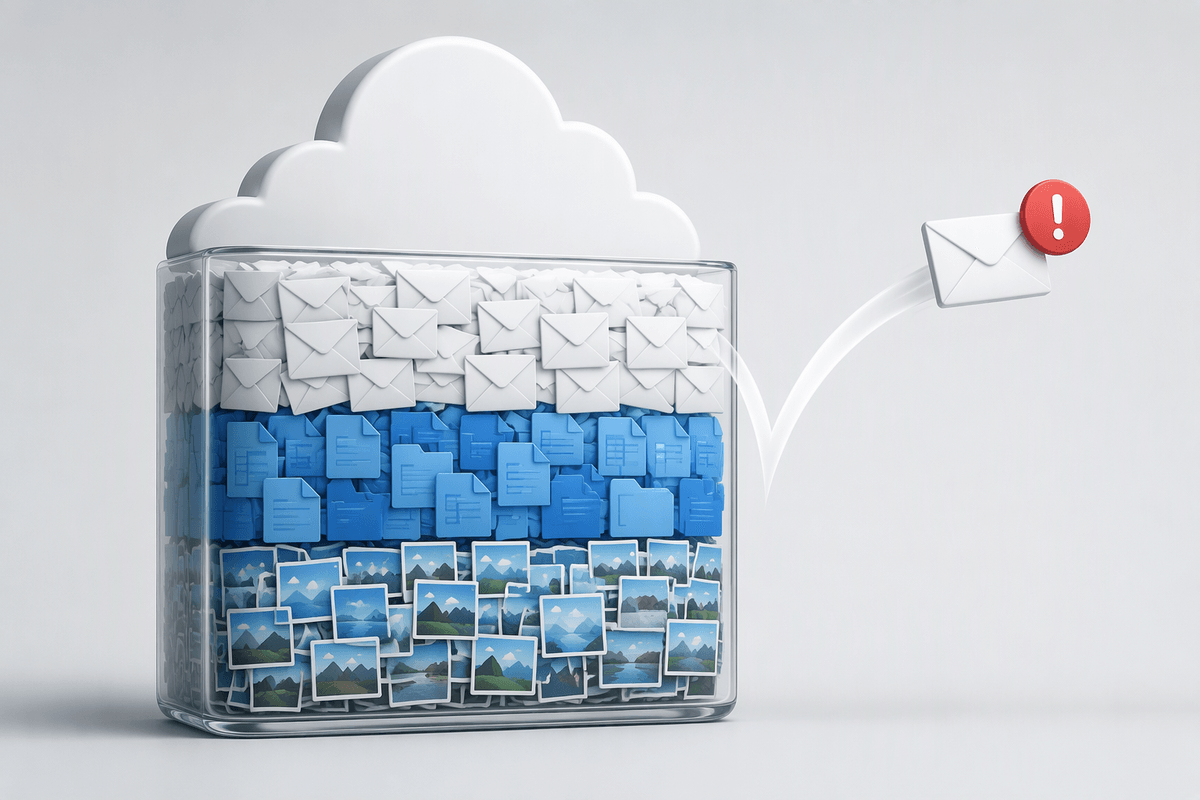
Sometimes nothing is wrong with sorting at all—mail is failing because the account can’t accept it. In Gmail, click your profile icon and check storage; if Google storage is full, new incoming mail can bounce back to the sender. Small-business users hit this when Drive or Photos quietly consumes the shared quota. Freeing space can take longer than you expect because you may need to empty Gmail Trash and Spam, delete large messages (search larger:10M), and clear out big files in Drive too.
When delivery truly fails, look for evidence on both ends. Ask the sender to forward the bounce message or delivery status notification (it often includes an error like “mailbox full,” “message rejected,” or “temporary failure”). If they can’t produce a bounce and you still can’t find the email in All Mail, you may be dealing with a delay rather than a loss—have them retry from a different system, or send a plain-text test email without attachments to rule out size or security filtering.
If nothing works: prove delivery and escalate wisely
If you’ve checked All Mail, Spam, filters, forwarding, connected apps, and storage, shift from guessing to proof. Ask the sender for the exact send time, the “to” address used, and a screenshot or copy of their sent message headers (or their mail system’s delivery log). If they received a bounce, get the full text—error codes matter. If there’s no bounce, have them send a simple test (no attachment, plain subject) from a different address or provider. With that info, contact Google Workspace support (if you’re on Workspace) or file a Gmail delivery issue in Google’s help flow; “it’s missing” moves faster when you can show details.