Choosing the Right Daily Task Tracker
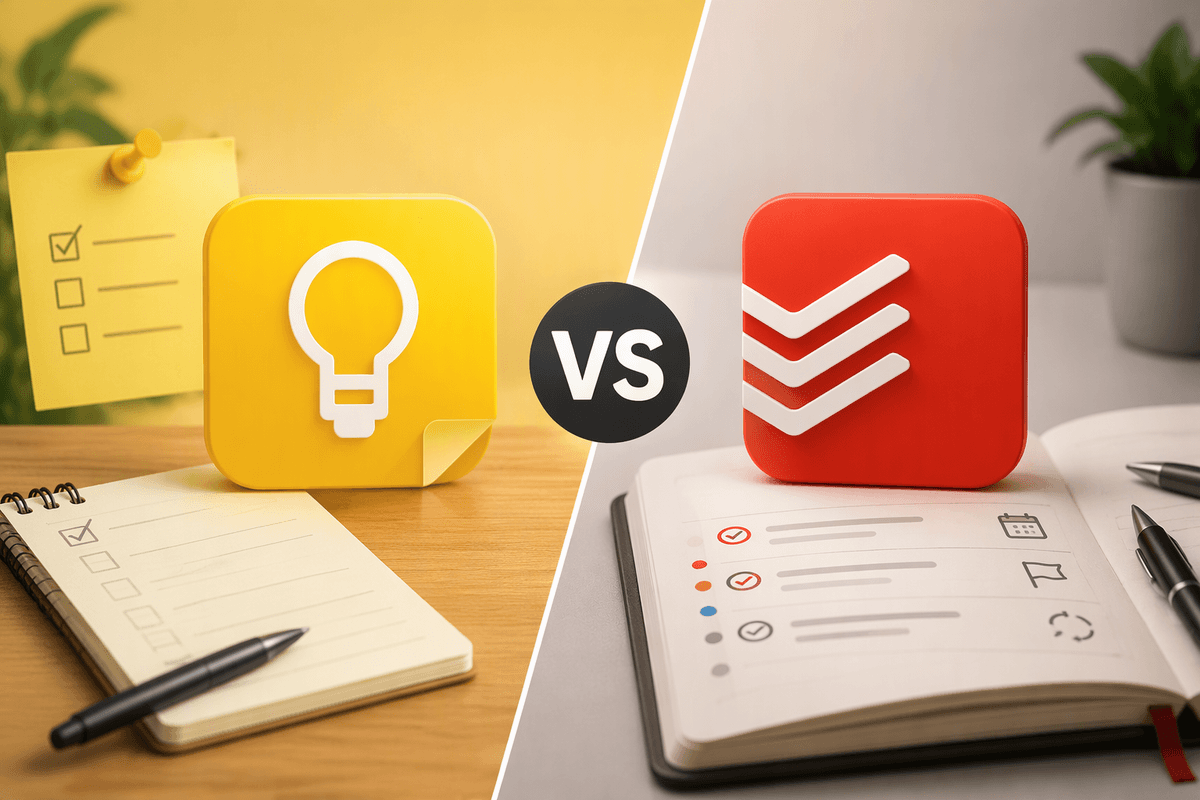
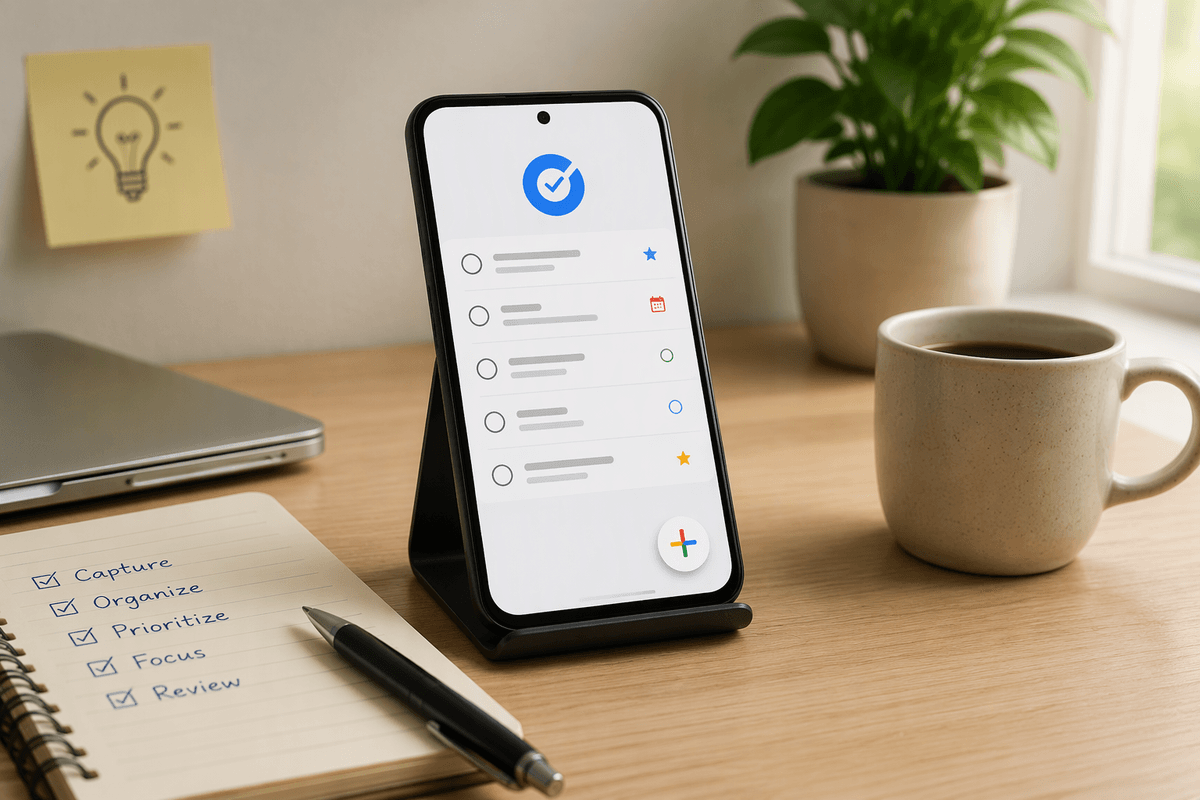
Choosing between Google Keep and Todoist starts with a simple question: do you mainly need a place to remember tasks, or a system that helps you manage them? Google Keep suits quick capture. You can jot down a grocery item, reminder, or short checklist with very little setup. Todoist takes a more structured approach, organizing tasks through projects, priorities, due dates, and recurring schedules.
That difference affects everyday use. Keep can feel faster when your plans change often or your list is small, but important tasks may become buried among notes. Todoist requires more decisions when adding a task, yet it makes larger workloads easier to sort and review. The better choice depends on whether convenience or organization is the bigger problem in your daily routine.
How Quickly Can You Capture a Task?

When a task appears unexpectedly, the fastest app is usually the one that asks for the fewest decisions. In Google Keep, you can open a note, type “buy printer ink,” and move on. A checklist can be expanded later, and voice input or a quick widget can make capture practical when your hands are busy. This works well for loose reminders, shopping items, and ideas that do not yet have a clear deadline.
Todoist is also quick, but its strength comes from adding useful details at the same time. A task such as “Call the dentist tomorrow at 9 AM” can include a date and time directly in the task text, while labels, priorities, and project placement provide more control. That saves review work later, but it can slow capture if you stop to classify every item. The practical difference is small for one task and significant across a busy day: Keep favors immediate entry, while Todoist favors capture that is already ready for planning.
Simple Lists Versus Structured Task Management
A simple list works well when the main goal is seeing what still needs to be done. Google Keep lets you create a checklist, reorder items, and mark them complete without deciding where each task belongs. That low overhead is useful for errands, packing, household chores, or a short list for the day. The limitation appears when one list starts carrying unrelated work. A few unchecked items can remain visible, while others disappear among older notes or separate checklists.
Todoist is better suited to tasks that need structure before they are completed. Projects can separate personal plans, work responsibilities, and errands, while priorities help distinguish urgent actions from items that can wait. Subtasks also turn a broad entry such as “prepare for the trip” into specific steps. This organization makes progress easier to review, but it adds maintenance: tasks must be assigned to projects, dates, or priorities, and an overly detailed setup can become another chore. Keep is the better fit for short, flexible lists; Todoist earns its extra complexity when you regularly manage multiple areas or need a reliable view of what comes next.
Which App Handles Deadlines Better?
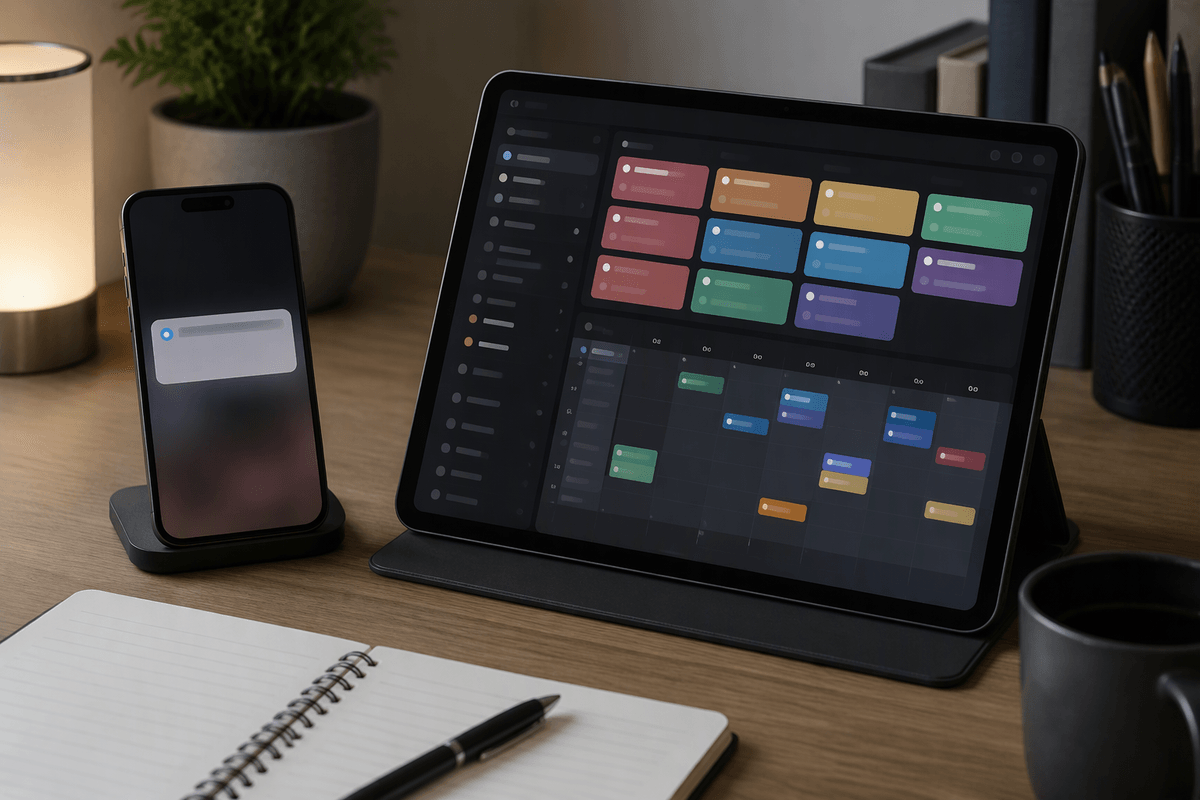
Deadlines are easier to manage when an app makes them visible without requiring constant checking. Google Keep can attach a reminder to a note, including a date and time, and its notifications work well for a single appointment, bill, or errand. The limitation is that reminders remain tied to individual notes. If several tasks have different due dates, Keep offers less support for sorting them by urgency or seeing the week as a whole.
Todoist handles deadline-driven planning more directly. Each task can have a due date, time, recurring schedule, priority, and project, giving you several ways to decide what deserves attention first. Its views and filters also make overdue work easier to identify before it becomes forgotten. That control comes with a cost: dates need regular maintenance, especially when plans change or unfinished tasks must be rescheduled. For occasional reminders, Keep is usually sufficient and faster. For appointments, recurring responsibilities, and deadlines competing for attention, Todoist provides the more dependable system because it connects due dates with a broader plan.
Keeping Work, Home, and Errands Separate
Separating work, home, and errands becomes difficult when every task appears in the same stream. Google Keep handles this with labels, colors, and separate notes. You might use one checklist for groceries, another for household repairs, and a labeled note for work ideas. This is easy to understand at a glance, especially when each area has only a few active items. However, Keep does not enforce much structure, so consistency depends on remembering to use the right label or note.
Todoist makes separation more systematic through projects, sections, labels, and filters. Work tasks can stay in a work project, while home maintenance and errands remain separate without relying on visual cues alone. Filters can then combine selected items, such as showing all tasks due today across those areas. This is useful when planning a realistic day, but setup takes longer and may feel excessive for a short personal list. Keep suits people who prefer visible, flexible categories; Todoist is stronger when separate responsibilities compete for time and need one organized view.
Collaboration, Devices, and Everyday Friction
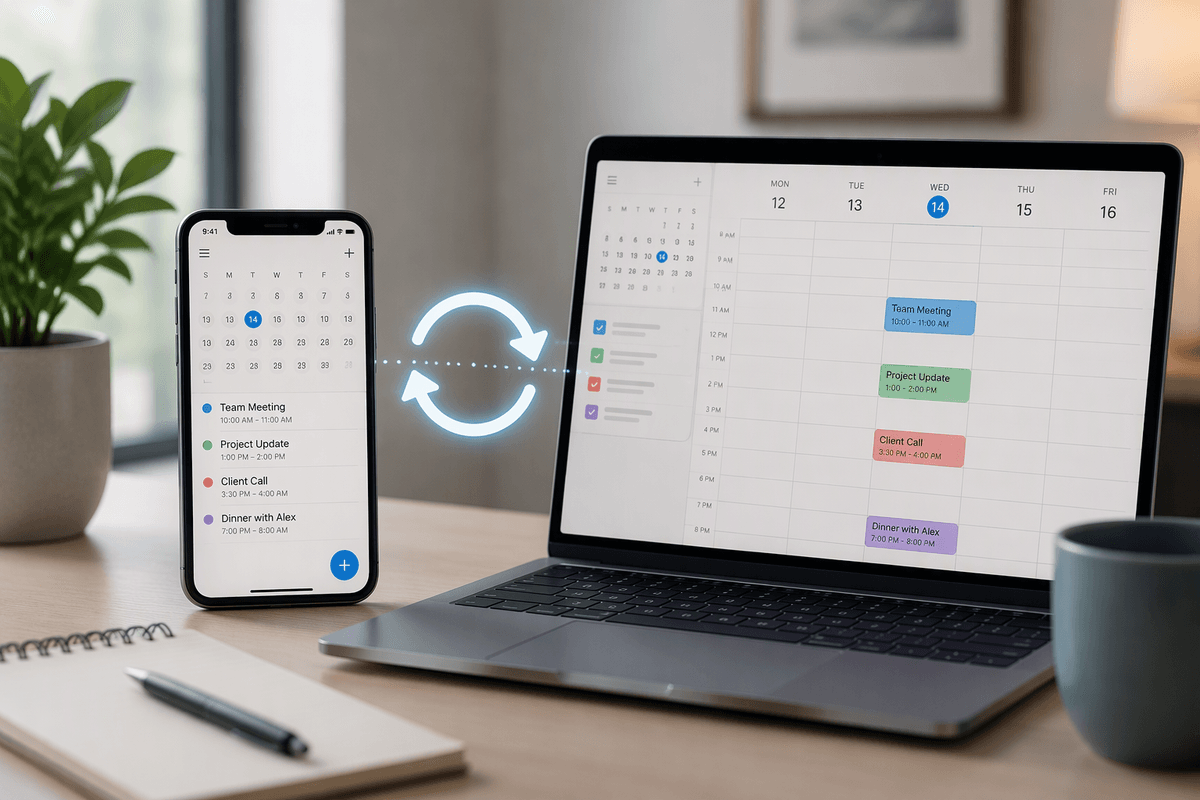
Device access matters when a task starts on one screen and finishes on another. Google Keep works smoothly for users who move between a phone, browser, and tablet, especially when they already use Google services. Notes, checklists, and reminders remain easy to open, and sharing a note can support a grocery list or a small household plan. The trade-off is that shared notes can become unclear when several people edit the same checklist without assigning responsibility.
Todoist is better suited to collaboration that requires ownership and follow-up. Shared projects, assigned tasks, comments, and due dates make it easier to coordinate chores, travel plans, or small work activities. Its cross-device access also supports a more consistent workflow, but the added controls create more opportunities for friction. People must learn the structure, maintain assignments, and decide when a task is truly complete. For informal sharing, Keep usually feels lighter. For coordinated work across devices and people, Todoist provides clearer accountability, provided everyone accepts the extra setup.
The Easier Choice Depends on Your Task Style
The easier choice depends on what usually goes wrong in your planning. If you need to capture short reminders, build occasional checklists, and avoid managing another system, Google Keep is likely the better fit. Its speed and simplicity reduce friction for groceries, household tasks, and flexible plans. If tasks are frequently missed, spread across several responsibilities, or tied to deadlines, Todoist offers stronger control through projects, priorities, recurring dates, and filters.
Neither app removes the need to review unfinished work or adjust changing plans. Keep can become cluttered, while Todoist can demand more setup than a small list deserves. Choose Keep when low effort matters most; choose Todoist when visibility, prioritization, and follow-through matter more. The best tracker is the one whose structure matches your habits closely enough to use consistently.