Start with your current iCloud Photos reality
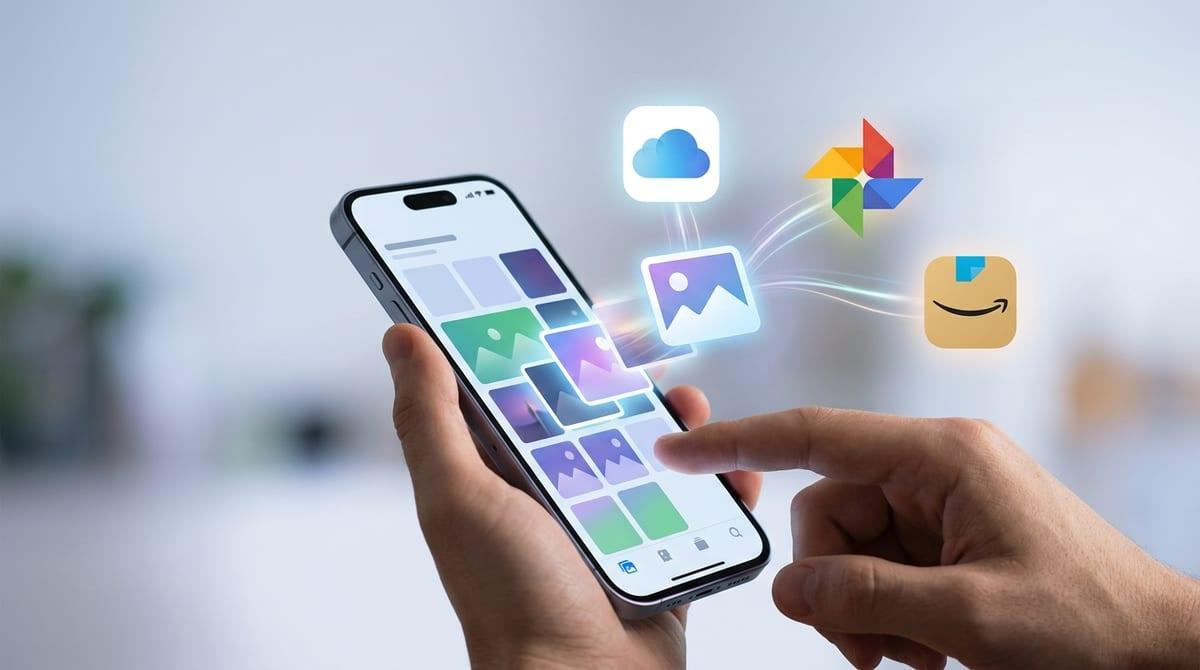
Before you compare anything, look at what iCloud Photos is already doing on your phone. Check how much iCloud storage you’re paying for (or not), how close you are to the cap, and whether “Optimize iPhone Storage” is on—because that one switch changes what “having your photos” even means when you’re offline or upgrading phones.
Then trace the chain: iPhone → iCloud → other Apple devices. If you’ve ever paused uploads on cellular, traveled with weak Wi‑Fi, or run low on local storage, you’ve seen the backlog happen. It’s not dramatic, but it creates uncertainty: the library feels “there,” yet the last few days might not be fully uploaded when you assume they are.
Finally, price the reality you’re living in. A jump from 200GB to 2TB often happens after one big burst—vacation video, new baby, or switching to a higher‑megapixel iPhone—and it’s hard to step back down later without deleting or offloading. That’s the baseline you’re comparing against.
Apple Photos wins when iPhone is the hub
If your iPhone is where you shoot, sort, and share, Apple Photos feels less like an app choice and more like the default operating system. The “Recents” stream lines up with Messages, AirDrop, and shared albums without extra logins or separate upload rules. That reduces the small frictions that usually cause drift—like leaving “upload in background” off for a week because an app asked for permission again.
The real advantage shows up during messy moments: a new phone, a repair swap, or a storage crunch. With iCloud Photos on, the library rebuild is mostly waiting, not re-importing. “Optimize iPhone Storage” can keep the device usable even as your library grows, but it also creates a constraint: on a flight or in a dead zone, full‑resolution originals might not be there when you expect them.
Cost is where it stops feeling automatic. iCloud storage is easy to upgrade in a panic, and hard to downgrade later once your family’s devices are all leaning on it. And because edits and metadata live inside the Apple ecosystem cleanly, the switching friction isn’t theoretical—you notice it the first time you try to move a few years out and realize you’re planning a migration, not a copy.
Google Photos shines after you add other devices
Once photos start coming from outside the Apple loop—an old Android phone, a Windows laptop dump, a partner’s device—Google Photos starts to feel less like “another gallery” and more like the one place everything lands. The cross-device upload story is simply smoother: multiple sources can feed one library without you babysitting which machine is “the importer” this month.
The search and automatic grouping pay off most when your library gets messy fast. If you’re pulling in camera files, screenshots, and years of mixed folders, Google’s ability to surface a specific receipt, kid’s birthday, or that one beach trip can save real time—especially when you don’t remember what device took it. That’s practical value, not a feature checklist.
The constraint is the same one that shows up in budgets: ongoing storage cost and future flexibility. Google One pricing is easy to accept at first, but stepping down later can force a cleanup project, and exporting a full library (albums, edits, duplicates) is a weekend, not a click. That switching friction matters more once multiple devices are depending on it.
Amazon Photos helps Prime families with lots of shots
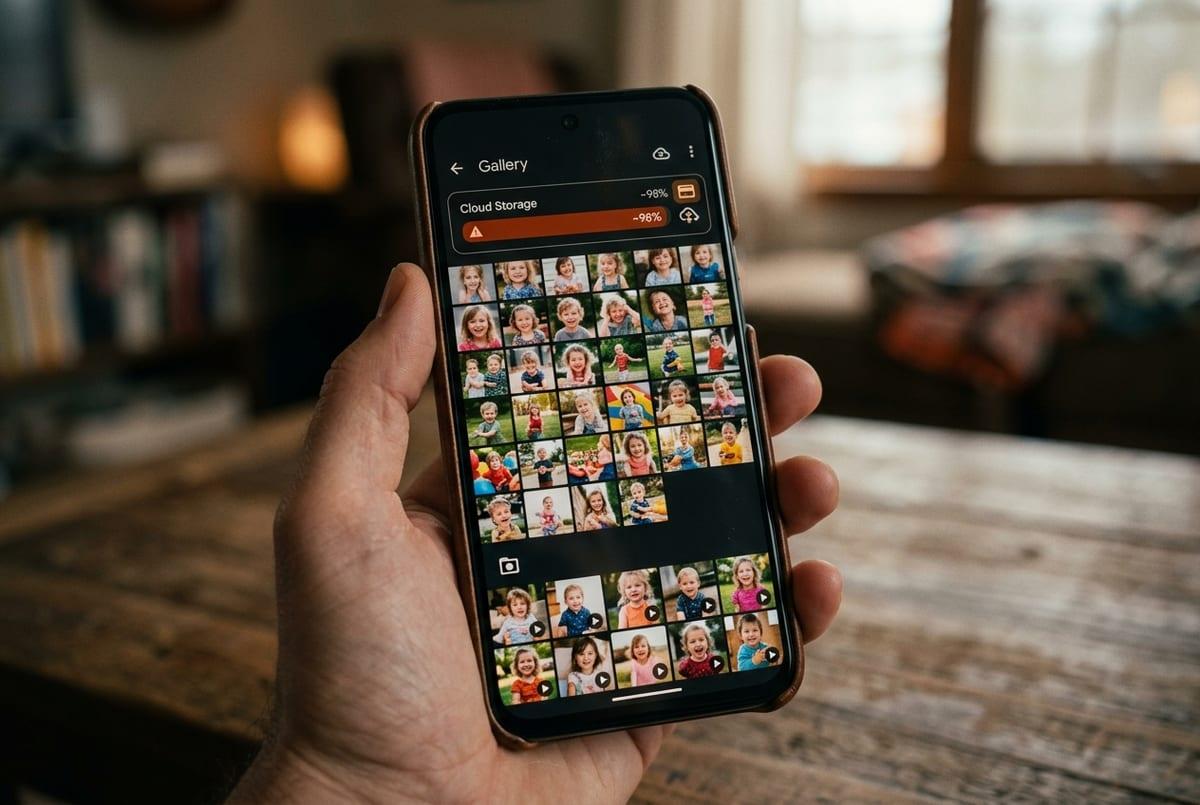
If Prime is already in the budget, Amazon Photos can feel like “found money,” especially for families generating endless kid photos. The unlimited photo storage is the hook, and it changes the monthly math fast—until you remember videos don’t get the same treatment and can quietly push you into a paid storage tier anyway.
Where it works best is the household angle: shared access without everyone paying for another separate subscription. In practice, the friction is less about setup and more about behavior—one person uploads religiously, another turns off background refresh to save battery, and suddenly the “family backup” is only current for one phone.
The longer-term constraint is portability. If you later decide you want Apple Photos or Google Photos as the main library, you’re not just moving files; you’re rebuilding the way the family searches, shares, and trusts that everything landed. That migration cost shows up right when time is already tight.
A reasonable backup choice that backfires later
The tempting move is to dodge subscriptions with a “simple” backup: plug in a drive once a month, dump the camera roll, maybe mirror it to a second drive when you remember. Up front, it feels like good money sense—one purchase, no rising tiers, no recurring bill. And for a while, it works well enough that you stop thinking about it.
Then life speeds up. A few missed weeks turns into months, and the next dump creates duplicates, broken folder dates, and a pile of “IMG_####” that nobody wants to sort. If you ever need to restore after a lost phone, the timing matters: the gap between “last backup” and “today” is where the regret lives.
It backfires hardest because a file copy isn’t the same as your library. Edits, albums, favorites, and shared history don’t come back cleanly. And once the drive is nearly full, the “one-time cost” turns into another purchase right when you’re already stressed.
Decide what matters: edits, search, sharing, privacy

When you start weighing “which app,” it helps to notice what you’d actually miss if you had to leave. Edits are the quiet trap. If you’ve spent years cropping, straightening, and making quick light tweaks, a lot of exports will either bake those changes into new files (creating doubles) or lose the non-destructive edit history. That means a migration isn’t just bandwidth and time; it’s deciding whether you’re okay rewriting parts of your library to make it portable.
Search is where value shows up day-to-day, but it’s also where lock-in hides. If you regularly retrieve photos by what’s in them—license plates, documents, a specific park—then the “best” library is the one that consistently finds things without you re-tagging. The constraint is that smarter search usually depends on more scanning and indexing, which can be hard to square with a tighter privacy posture.
Sharing sounds simple until you’ve got a spouse, grandparents, and group chats involved. Shared albums, link sharing, and “can everyone add their photos?” are workflow decisions, not features. Then there’s privacy: whether you’re comfortable with cloud-side analysis, and what happens if a service changes terms or pricing later, when leaving would take a weekend you don’t have.
Pick your setup, then lock down a safe workflow
Once you pick a “home” library, commit to it the way you’d commit to a bank: one place is the system of record, everything else is a copy. If Apple Photos is the hub, that usually means iCloud Photos stays on, “Optimize iPhone Storage” is fine, and you stop treating the iPhone as the archive. If Google Photos is the hub, you accept the subscription as the cost of cross-device sanity and keep Apple Photos mostly as a camera roll mirror, not a second organizing layer.
Then add one independent backstop that isn’t the same company. The lowest-friction version is a periodic full export to a computer plus an external drive, with a calendar reminder because “I’ll do it later” is how gaps form. The constraint is time and bandwidth: the first sync or export can take days, and it’s easy to misread “queued” as “backed up.”
Finally, test failure once, on purpose: sign into a new device, confirm the last week is present, and verify you can pull down originals for a handful of photos and videos. That small drill is what turns a subscription into an actual workflow, and it’s usually where people catch the expensive mistake—thinking they had redundancy when they only had synchronization.