When it works on mobile, what changed?
You type a site on your laptop, it spins or throws an error, then you try the same link on your phone and it loads immediately. That contrast is a clue: something about the “path” is different, even if you’re on the same Wi‑Fi. Your phone may be using cellular data, a different DNS resolver, or a built-in privacy mode that avoids a problematic extension, cached file, or security filter on your computer.
Also, “the site” isn’t always the same site. Many services serve a mobile layout, a different login flow, or fewer scripts to phones. The desktop version can trip over an older browser, strict tracking protection, a corporate firewall rule, or a bad cached update. The goal is to identify what changed between devices before you start randomly reinstalling things.
Start by pinning down the failure mode
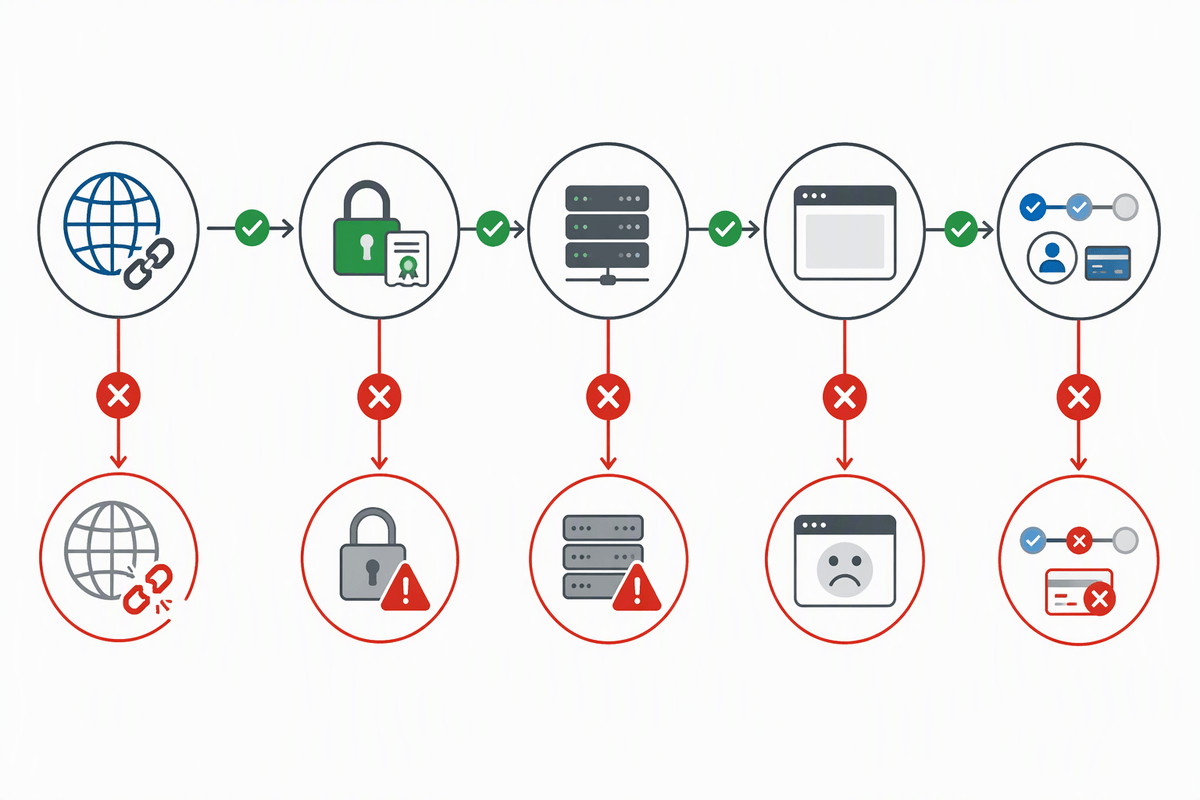
The fastest way to stop guessing is to describe the failure in one sentence. Does the page never connect (spins, “site can’t be reached”)? Does it connect but show an error code (403 forbidden, 404 not found, 500 server error)? Does it load but look wrong (blank white page, missing buttons), or does it only fail at a specific step (login, checkout, file download)? Those are different problems with different causes.
Capture the exact wording of the message and the time it happened. If there’s a short code like “ERR_NAME_NOT_RESOLVED” or “NET::ERR_CERT_DATE_INVALID,” write it down. Take a screenshot if you can. Small details matter because “it doesn’t work” could mean DNS, an account block, a certificate/date issue, or a script failing after the first page loads.
Is it the computer, the browser, or both?
A quick split test tells you whether you’re dealing with a browser problem or a computer/network problem. On the same computer, try a second browser you don’t normally use (Chrome vs. Edge vs. Firefox). If the site works there, your main browser is the suspect: a bad cached file, a corrupted cookie, strict privacy settings, or an extension that rewrites pages. An incognito/private window is a faster first check because it usually disables most extensions and starts with a clean session; if incognito works, focus on extensions and site data rather than your Wi‑Fi.
If the site fails in every browser on that computer, shift away from “browser settings” and toward “system-level” causes: proxy settings, antivirus web filtering, a local firewall rule, or even the computer’s date/time being wrong (which can break HTTPS). If another computer on the same network loads the site fine, that points back to something unique on your machine. If no computers can load it but phones can, the network path (DNS, proxy, router, ISP filtering) becomes the likely culprit.
The hidden culprits: cache, extensions, and security tools
You’ve probably seen this: a site used to load yesterday, and today your laptop shows a blank page, an endless spinner, or a login loop. Often it’s not “the internet”—it’s local leftovers. Start with the easiest isolation: open an incognito/private window, then try the site. If it works there, your regular session likely has a bad cookie or cached script. Clear the site’s data first (cookies and cache for that one site), not your whole history, because wiping everything logs you out of other services and can remove saved preferences.
If incognito fixes it, extensions are the next suspect. Ad blockers, privacy tools, password managers, shopping/coupon add-ons, and “reader” or “script” extensions can block key requests or rewrite pages. Temporarily disable them (or use a fresh browser profile) and re-test until you find the one that breaks the site. Don’t forget security tools outside the browser: antivirus “web protection,” DNS filtering apps, and corporate endpoint software can silently block categories of sites or specific scripts. These are harder to prove and may require an admin to adjust an exception.
Same Wi‑Fi, different route: DNS, proxies, firewalls

You can be sitting on the same Wi‑Fi and still take a different route to the same site. Phones often use the router’s “automatic” DNS, while a work laptop might be set (intentionally or by a security tool) to use a filtered DNS service. A classic symptom is “server IP address could not be found,” “DNS_PROBE_FINISHED_NXDOMAIN,” or pages that load on mobile but not on desktop. Quick check: switch the computer to a different network (phone hotspot) or temporarily set DNS to a well-known public resolver, then retest. If it suddenly works, the site wasn’t “down”—your usual DNS path was.
Proxies and firewalls create the same split. A company proxy, or “secure web gateway” can block logins, file downloads, or specific domains used for scripts and images, so the page looks half-broken. Look for “proxy” settings on the computer, and see whether the error changes. The practical constraint is you may not be able to fix this yourself: in offices, DNS, proxies, and firewall rules are often locked, so you’ll need IT to allowlist the domain and any related subdomains.
When the site’s desktop version is actually broken
Sometimes the difference isn’t your computer at all: the site’s desktop experience is the part that’s failing. This shows up when the homepage loads, but a specific desktop-only page breaks (a dashboard, checkout, upload tool), or when the site works in every browser on your phone yet fails on multiple computers in different places. Another hint is when the error is consistent across networks and devices but only after the site “switches” to the full desktop layout, loads heavier scripts, or redirects through a desktop login provider.
When you suspect this, stop burning time on reinstalling browsers. Try forcing the mobile version on your computer (some sites have a “m.” subdomain or “mobile” view), or switch your browser’s user agent only as a quick test. If that works, it’s strong evidence the desktop scripts or styling are broken. The practical downside is you can’t fix their code; what you can do is collect details (URL, exact time, screenshots, console error if available) and send them to the site’s support so it gets routed to the right team.
A practical fix checklist and when to escalate
If you want a fast path: try the site in a private/incognito window, then try a second browser. If either works, clear cookies/cache for that one site and disable extensions (especially ad blockers, privacy tools, and “helper” add-ons) until it stays fixed. If it fails everywhere, check your computer’s date/time, turn off proxy temporarily, and pause antivirus “web protection” long enough to test. Switch networks (phone hotspot) to separate “your Wi‑Fi/DNS” from “your device.”
Escalate when you can’t change DNS/proxy/firewall settings, or when the site fails on multiple computers and networks. Send IT/ISP/site support the exact URL, the error text/code, the time it happened, whether hotspot works, and a screenshot. List what you tried so they don’t start you back at step one.